Expenses
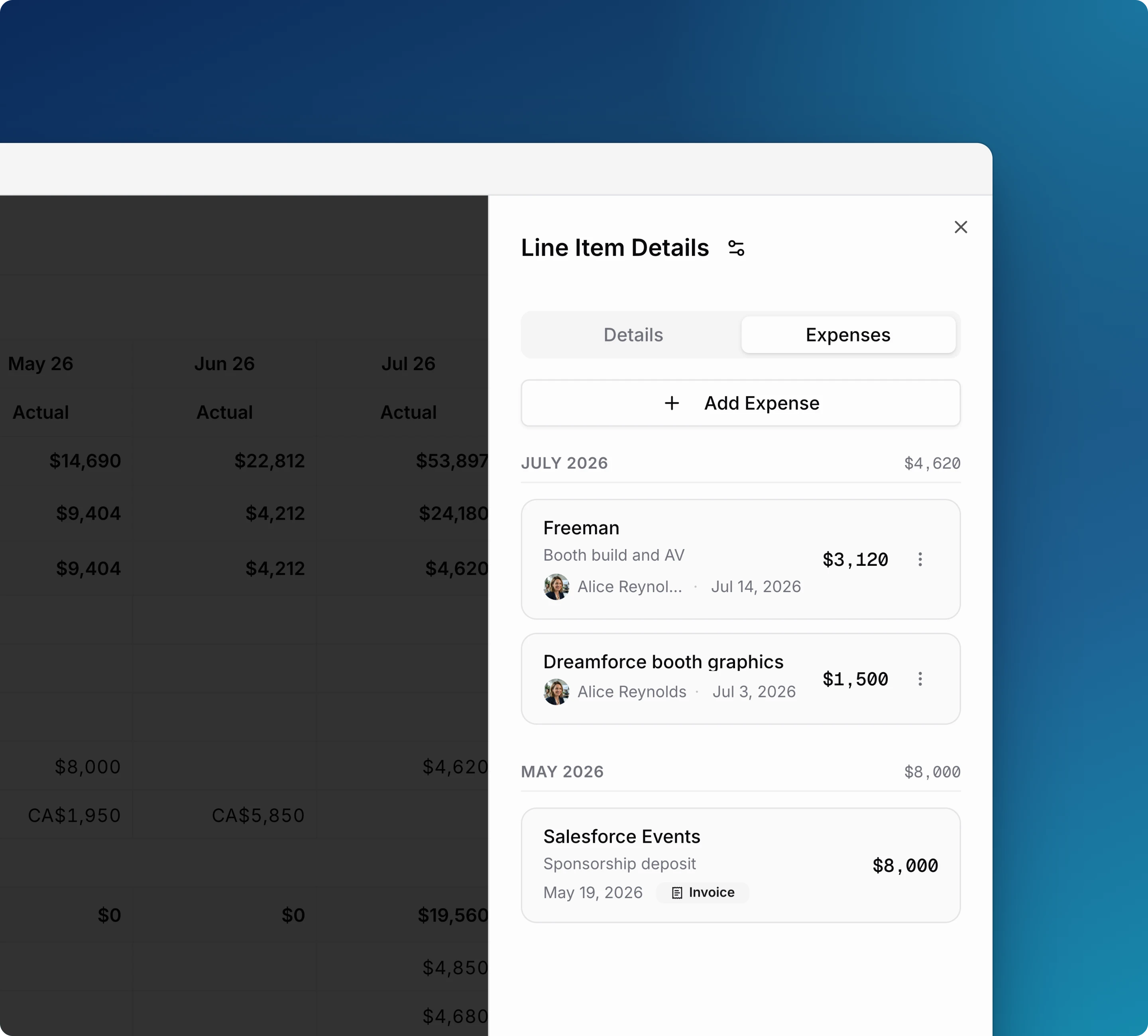
Record each payment under a line item with its date, amount and vendor. Etropo adds up the expenses in each month and writes the total into the actual cell for that month. Every actual then has the list of expenses behind it.
Open the Expenses tab
- Open your budget from Budget in the sidebar.
- Click the name of a line item. The Line Item Details panel opens.
- Click the Expenses tab.
Expenses are grouped by month, newest month first. The subtotal next to each month is the actual for that month. Rows that come from a confirmed invoice carry an Invoice badge. Rows marked Migrated are actuals recorded before Expenses existed, kept as an opening balance.
Add an expense
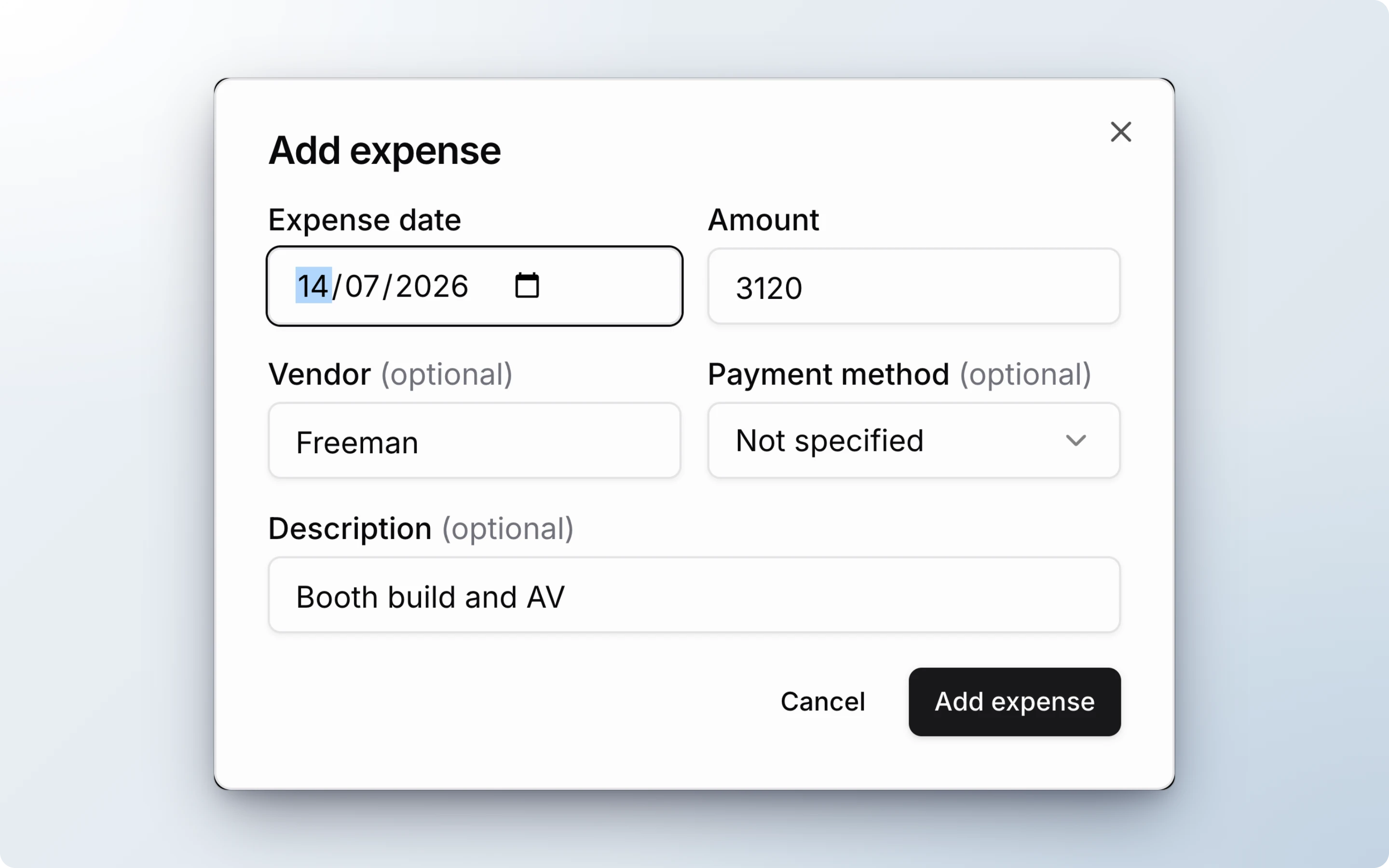
- Click Add Expense, then Manually.
- Enter the Expense date and the Amount. Vendor, payment method and description are optional.
- Click Add expense.
The month’s actual updates at once. If the month already had a typed actual, the expense total replaces it. The date must fall inside the budget period. Negative amounts are allowed, for credits and refunds.
You can also right-click an actual cell and click Add expense. The form opens with the date set to that month.
Attach an invoice
Click Add Expense, then Attach invoice, and upload the PDF. After you review the extracted details and click Save & Apply to Actuals, the invoice becomes an expense on this line item. See Invoice Automation.
Edit or delete an expense
Click the ⋮ at the end of the row.
- Manual expenses: Edit or Delete.
- Invoice expenses: no menu. Reject or delete the invoice in Invoice Automation, and the expense goes with it.
- Migrated expenses: Delete only.
Deleting recalculates the month at once, with no confirmation step. When you delete the last expense in a month, the actual becomes empty and the cell unlocks.
Locked actual cells
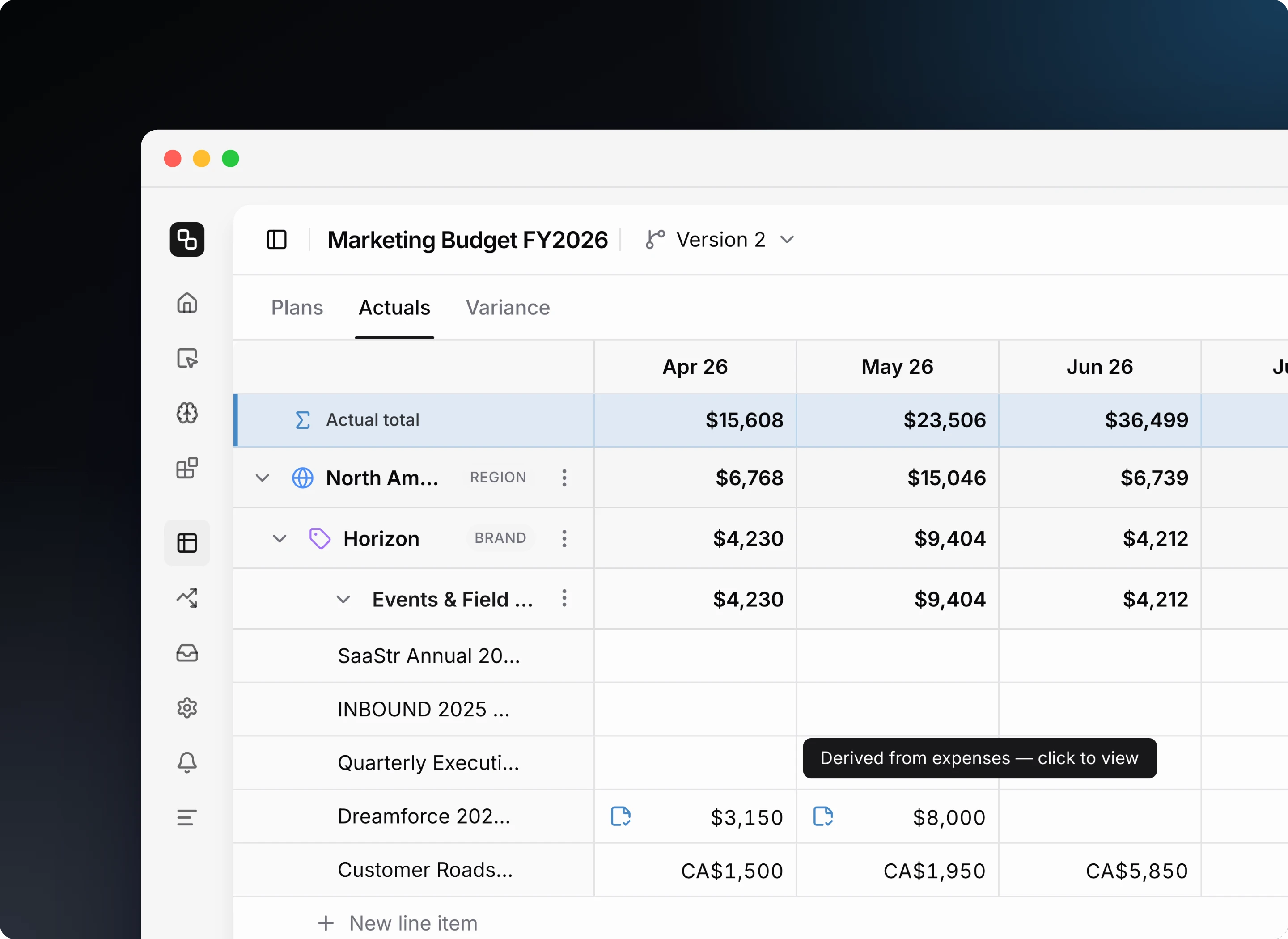
When a month has expenses, its actual cell shows a note icon with a check mark, and you cannot type into it. Click the cell to open the Expenses tab. Paste, fill and multi-cell edits skip locked cells. You can still right-click a locked cell to Add expense or to leave a comment.
Frequently asked questions
Why can’t I add expenses to some line items?
Line items synced from an ad platform, such as Google Ads, LinkedIn Ads or Meta Ads, cannot have expenses. The sync owns their actuals, and the Expenses tab tells you so.
Can Budget Buddy change an expense-backed actual?
No. When you ask Budget Buddy or a connected AI tool to update actuals, it skips months that have expenses, tells you why, and applies the rest of your request. Edit the expenses instead.
Do expenses carry over between budget versions?
Yes. Expenses belong to the budget, not to one version of it, so every version shows them. Duplicating a budget does not copy expenses.
Who can add expenses?
Everyone with access to the line item’s category can add, edit and delete its expenses. See Access Control. Expenses are available on all plans.
For additional help you can reach out to our support team at: help@etropo.com