Inviting Team Members to Your Budget
Etropo enables secure team collaboration on your marketing budgets with granular access controls. You can invite team members with different permission levels and restrict access to specific budget categories based on their responsibilities.
How to Invite Team Members
To add someone to your Etropo account:
- Go to Company Settings → Team (here’s a direct link )
- Click the invite button to add a new team member
- In the invitation modal, enter their email address and select their role (Admin or User)
- Assign category access - if selecting User role, specify which budget categories they can access for each budget
- Send the invitation - they’ll receive an email with instructions to join
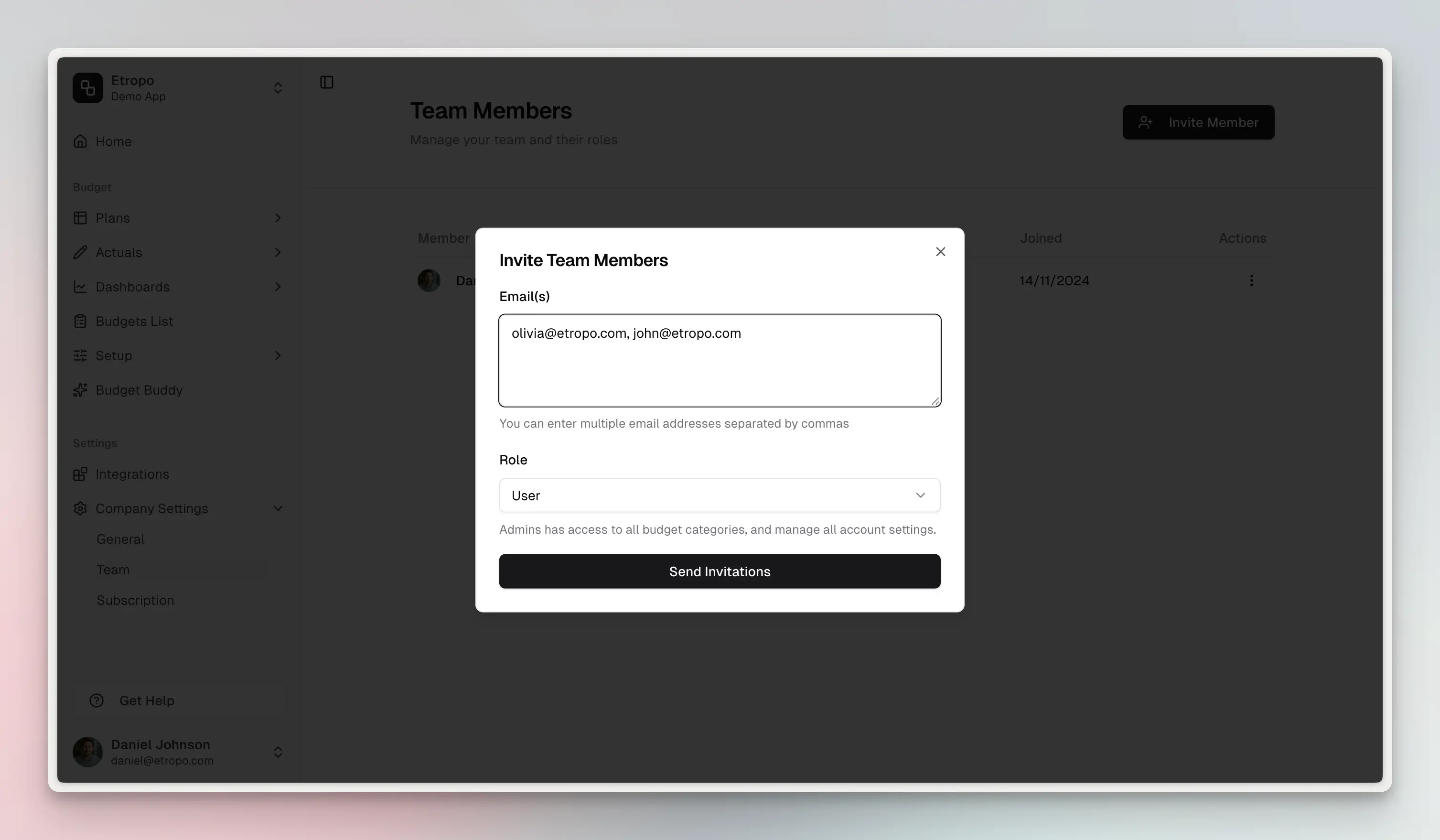
Once invited, team members will receive an email notification and can access the budget after accepting the invitation.
Understanding User Roles
Before inviting someone, you’ll need to decide which role best fits their needs. Etropo offers two role types with distinct permission levels:
Admin Role
Administrators have complete control over the budget:
- Full access to all budget data and total budget numbers
- Can view and edit all categories, regardless of individual assignments
- Can manage users and their permissions
- Can modify budget settings and structure
⚠️ Important: Only assign Admin role to trusted team members who need unrestricted access. Admins can see and modify everything in your budget.
User Role
Regular users have limited, controlled access:
- Access restricted to specifically assigned categories only
- Cannot view total budget numbers or unassigned categories
- Cannot manage other users or modify budget-wide settings
- Can view and edit only their assigned areas
Best for: Team members who manage specific marketing channels or campaigns and don’t need visibility into the entire budget.
Setting Up Category Access
For team members with the User role, you control exactly what they can see and edit through category-level permissions:
How Category Access Works
- Selective visibility: Users only see categories you’ve explicitly assigned to them
- Data confidentiality: Unassigned categories remain completely hidden from the user
- Master category inheritance: When a budget uses master categories, granting access to a master category automatically includes all child categories underneath it
- Budget-level control: Category assignments are set per budget, so the same user can have different access levels across multiple budgets
Managing Category Assignments
You can assign categories when inviting a new user or modify their access at any time through the budget settings. This flexibility allows you to adjust permissions as team responsibilities evolve.
For detailed information about managing category permissions, see the Access Control guide.
Best Practices for Team Collaboration
Follow these recommendations to maintain secure and effective budget collaboration:
- Start restrictive: Begin new team members with User role and limited category access. You can always expand their permissions later.
- Use master categories strategically: Organize related categories under master categories to simplify permission management for entire marketing channels or departments.
- Review access regularly: Periodically audit who has access to what, especially when team roles change.
- Limit Admin assignments: Reserve Admin role for budget owners and senior stakeholders who truly need full visibility.
- Communicate changes: When adjusting someone’s access, let them know so they understand any changes to what they can view.
Next Steps
After inviting your team:
- Set up category access control with the appropriate granularity for each user
- Review the Access Control guide for advanced permission management
- Start collaborating on your marketing budget with your team