Connecting Etropo to Google Sheets
With the integration between Etropo and Google Sheets, you can automatically sync your marketing budget data to Google Sheets. Each connected budget creates a dedicated spreadsheet with three tabs: Plans, Actuals, and Combined data. The integration supports both manual synchronization and automated daily syncing.
Setup
- Go to Integrations Tab , click “Connect” on the Google Sheets card
- Authorize access to your Google account
- Select the budget you want to connect
- Select the version of that budget to export — the active version is selected by default
- A new Google Sheet will be automatically created with your budget data
- From now on, your budget data will be automatically synced daily at 7:00 AM UTC
Note: Only organization administrators can connect and manage Google Sheets integrations.
Budget Versions
A spreadsheet is connected to one version of a budget, and keeps exporting that version’s plans.
If you activate a different version later, the connection follows automatically — the same spreadsheet starts exporting the newly active plan, so the sheet you shared with finance keeps pointing at the live numbers. Deleting a connected version disconnects its spreadsheet; the confirmation dialog tells you before you delete.
Actual spend is shared across all versions, so the Actuals tab shows the same figures no matter which version is connected.
Features
Automated Daily Sync
The integration automatically syncs your budget data:
- Syncs daily at 7:00 AM UTC, or manually with a single button click
- Etropo syncs both planned budget amounts, as well as actual spend
Multi-Sheet Structure
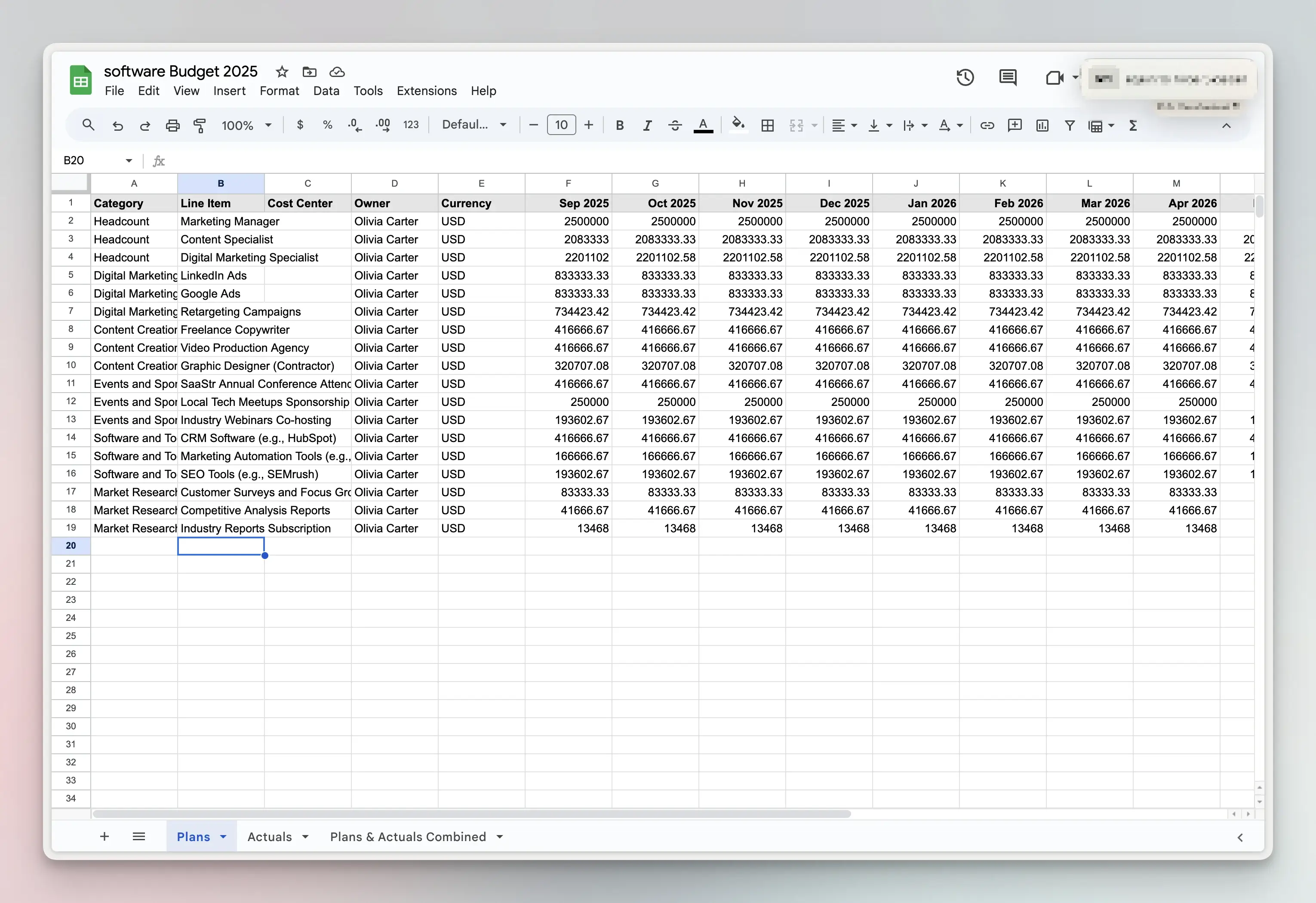
Each connected budget creates a Google Spreadsheet with three tabs:
Plans Sheet
- Export of planned budget amounts by month
- Includes Category, Line Item, Cost Center, Owner, and Currency
- Monthly columns for the entire budget period
Actuals Sheet
- Export of actual spend amounts by month
- Updated with latest actuals from integrations and manual entries
Combined Sheet
- Side-by-side comparison with plan and actual columns for each month
- Example: “Jan 2025 Plan” | “Jan 2025 Actual” | “Feb 2025 Plan” | “Feb 2025 Actual”
- Quick variance analysis
Currency Support
The integration exports line item currency information alongside financial data, ensuring accurate reporting for multi-currency budgets.
Spreadsheet Structure
Each sheet includes the following columns:
Plans & Actuals Sheets
| Category    | Line Item     | Cost Center | Owner | Currency | Jan 2025 | Feb 2025 | ... |
|-------------|---------------|-------------|-------|----------|----------|----------|-----|
| Marketing   | Google Ads    | Sales       | John  | USD      | 5000     | 5200     | ... |
| Operations  | Software      | IT          | Jane  | USD      | 2000     | 2000     | ... |
Combined Sheet
| Category  | Line Item  | Cost Center | Owner | Currency | Jan 2025 Plan | Jan 2025 Actual | Feb 2025 Plan | Feb 2025 Actual | ... |
|-----------|------------|-------------|-------|----------|---------------|-----------------|---------------|-----------------|-----|
| Marketing | Google Ads | Sales       | John  | USD      | 5000          | 4800            | 5200          | 5100            | ... |
| Operations| Software   | IT          | Jane  | USD      | 2000          | 2000            | 2000          | 2000            | ... |
Troubleshooting
Common issues and solutions:
- Sync Failures: Check the error message in the Integrations page for specific details
- Authentication Issues: Try disconnecting and reconnecting the integration
- Missing Data: Ensure your budget has data for the selected period
- Sheet Access: The created sheet is private to your Google account. Share it with your team manually from Google Sheets.
Privacy & Security
We maintain strict security standards for the Google Sheets integration:
- OAuth 2.0 authentication for secure connection
- Secure access tokens encryption
- Organization-level data isolation
- Audit logging for all sync operations
Data Collection
The integration collects:
- Google account information for authentication
- Budget data (categories, line items, plans, actuals)
- Spreadsheet IDs and sync status
- Sync history and error logs
We store nothing more than that. For complete details about how we handle your data, please review our Privacy Policy .
Support
For additional help you can reach out to our support team at: help@etropo.com