Connecting Etropo to Attio CRM
Connect Etropo to Attio CRM to automatically track campaign conversions and revenue from your sales pipeline. When deals reach specific stages in Attio, they’re counted as conversions in your campaigns.
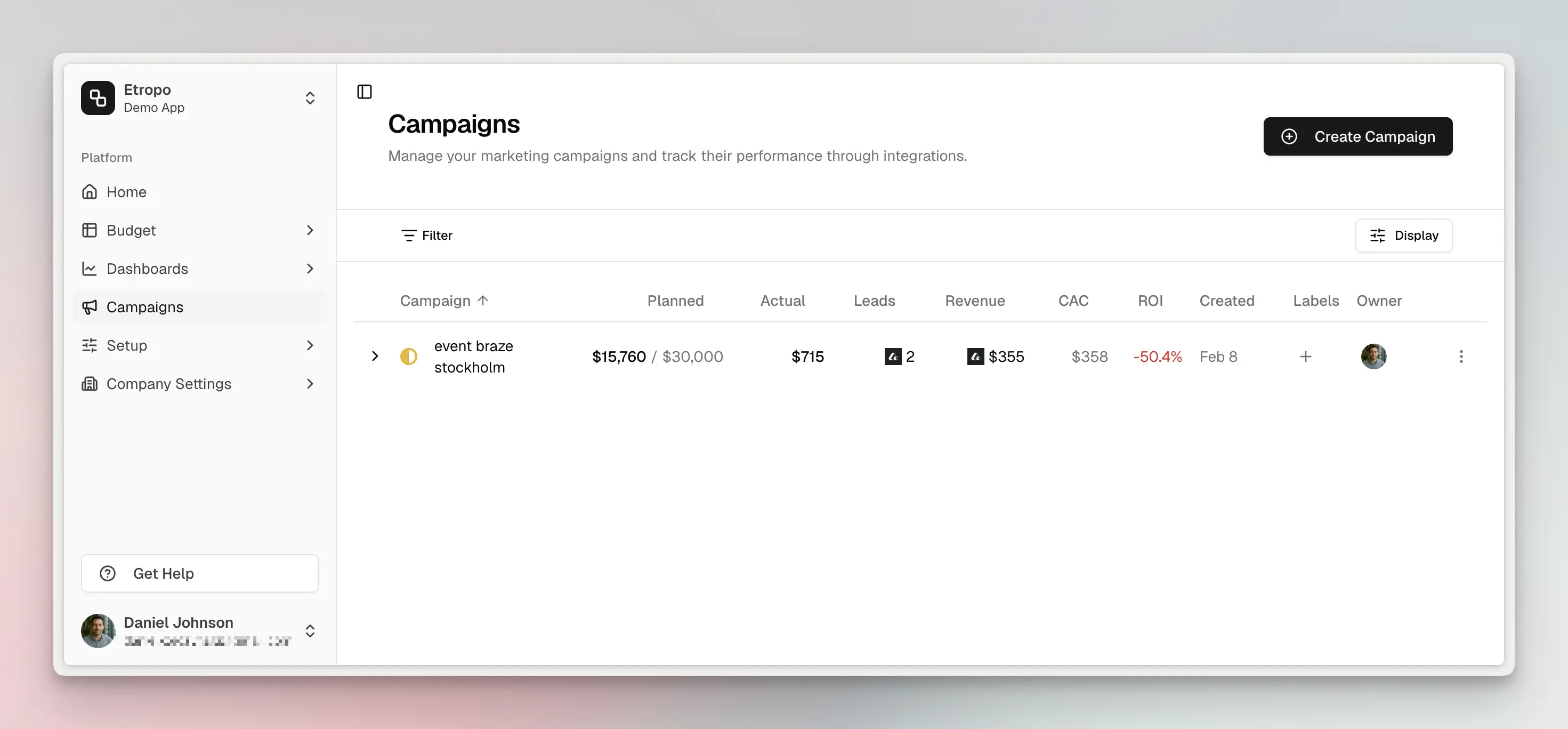
The Attio integration allows you to:
- Track conversions: Count deals in specific pipeline stages as campaign leads
- Sync revenue: Automatically pull deal values to campaign revenue
- Filter by attributes: Count only deals matching specific criteria (e.g., UTM source, campaign name)
Prerequisites
Before connecting Attio, ensure:
- You have an Attio workspace with the Deals object enabled
- Your Attio account has API access permissions
- You have Admin access in your Etropo organization
Setup
Step 1: Navigate to Integrations
- Go to Settings > Integrations in the sidebar
- Find Attio in the integrations list
- Click Connect Attio
Step 2: Authorize Access
- You’ll be redirected to Attio’s authorization page
- Review the permissions requested
- Click Authorize to grant Etropo access
- You’ll be redirected back to Etropo
Step 3: Verify Connection
Once connected, you’ll see:
- A “Connected” status on the Attio integration card
- Access to the Attio integration settings page
- The ability to configure campaign tracking
Configuring Campaign Tracking
Each campaign can be individually configured to track conversions from Attio.
From the Campaigns Page
- Navigate to Campaigns
- Click the three-dot menu on any campaign
- Select Connect to Attio (or Edit Attio connection if already configured)
Configuration Options
Pipeline Stage (Required)
Select which deal stage should count as a conversion:
- Lead: Early stage prospects
- Qualified: Vetted opportunities
- Proposal: Sent proposals
- Closed Won: Successful deals
- (Your custom stages will appear here)
Deals in the selected stage will be counted as conversions for this campaign.
Filter Attribute (Optional)
Narrow down which deals to count by filtering on a deal attribute:
- Select an attribute (e.g., “Source”, “UTM Campaign”, “Lead Source”)
- Enter the value to match (e.g., “google-ads”, “spring-campaign”)
Only deals where the attribute equals your specified value will be counted.
Example use cases:
- Count only deals where UTM Source = “linkedin”
- Count only deals where Campaign = “Q1 Product Launch”
- Count only deals where Lead Source = “Paid Advertising”
Sync Revenue
Toggle this option to automatically sync deal values:
- Enabled: Campaign revenue = sum of all matching deal values
- Disabled: Manually enter revenue, or leave it blank
When enabled, the Attio logo appears next to the revenue value in your campaigns table.
How Syncing Works
Automatic Sync
Conversion and revenue data syncs automatically when:
- You open the Campaigns page
- A campaign mapping is created or updated
- You click Sync All on the Attio integration page
Manual Sync
To manually trigger a sync:
- Go to Settings > Integrations > Attio
- Click the Sync All button
- Wait for the sync to complete
The sync status and timestamp appear for each campaign mapping.
Managing Mappings
Editing a Mapping
- Click the three-dot menu on the campaign
- Select Edit Attio connection
- Modify the stage, filter, or revenue sync settings
- Click Update to save
Removing a Mapping
- Click the three-dot menu on the campaign
- Select Edit Attio connection
- Click Remove Tracking
- Confirm the removal
Removing a mapping stops syncing but preserves the last synced values in the campaign.
Disconnecting Attio
To completely disconnect Attio:
- Go to Settings > Integrations > Attio
- Click Disconnect in the top-right
- Confirm the disconnection
This will:
- Remove all campaign mappings
- Revoke Etropo’s access to your Attio workspace
- Stop all syncing
Historical data already synced to campaigns will be preserved.
Troubleshooting
”Deals object not enabled” Error
Your Attio workspace needs the Deals object enabled:
- Go to Attio Settings > Objects
- Enable the Deals object
- Return to Etropo and try again
Zero Conversions After Setup
Check the following:
- Correct stage selected: Verify deals exist in the chosen pipeline stage
- Filter value matches: If using a filter, ensure the value exactly matches (case-sensitive)
- Sync completed: Click Sync All and wait for completion
- Check Attio directly: Verify the deals appear in Attio with the expected attribute values
Privacy & Security
We take the security and privacy of your data seriously. Here’s how we handle your data when you connect Etropo to Attio:
Data Collection
When using the Attio integration, we collect:
- Workspace ID for connection management
- Deal counts and values for conversion tracking
- Pipeline stage information for mapping configuration
Data Processing
Your data is processed securely:
- Etropo only accesses deal counts and values (not sensitive deal details)
- All requests are validated using OAuth authentication
- Organization-level access control ensures data isolation
Data Storage
- Location: All data is stored in EU-central-1 (Frankfurt, Germany)
- Access Control: Only authorized users within your organization can access and modify data
Revoking Access
You can revoke Etropo’s access at any time:
- From Etropo: Disconnect the integration in Settings
- From Attio: Revoke the app in your Attio workspace settings
For complete details about how we handle your data, please review our Privacy Policy .
Best Practices
- Use specific filters to avoid counting unrelated deals
- Match UTM parameters if you’re tracking marketing campaigns
- Enable revenue sync for closed-won stages to track pipeline value
- Review mappings monthly to ensure they’re still relevant
- Set up one mapping per campaign to keep tracking clear
FAQ
Q: Can I track multiple stages for one campaign?
A: Currently, each campaign tracks one stage. Create separate campaigns for different stages if needed.
Q: How often does data sync?
A: Automatically when you open Campaigns, or manually via Sync All. There’s no background scheduled sync.
Q: Will deleting a deal in Attio update my campaign?
A: Yes, the next sync will reflect the updated deal count.
Q: Can I map the same Attio stage to multiple campaigns?
A: Yes, using different filter values. For example, two campaigns can both track “Closed Won” but filter by different UTM sources.
Q: What happens if I rename a stage in Attio?
A: The mapping stores both the stage ID and title. The ID-based lookup will continue working, but you may want to update the mapping for clarity.
Support
For additional help you can reach out to our support team at: help@etropo.com