What You Can Do with Etropo AI
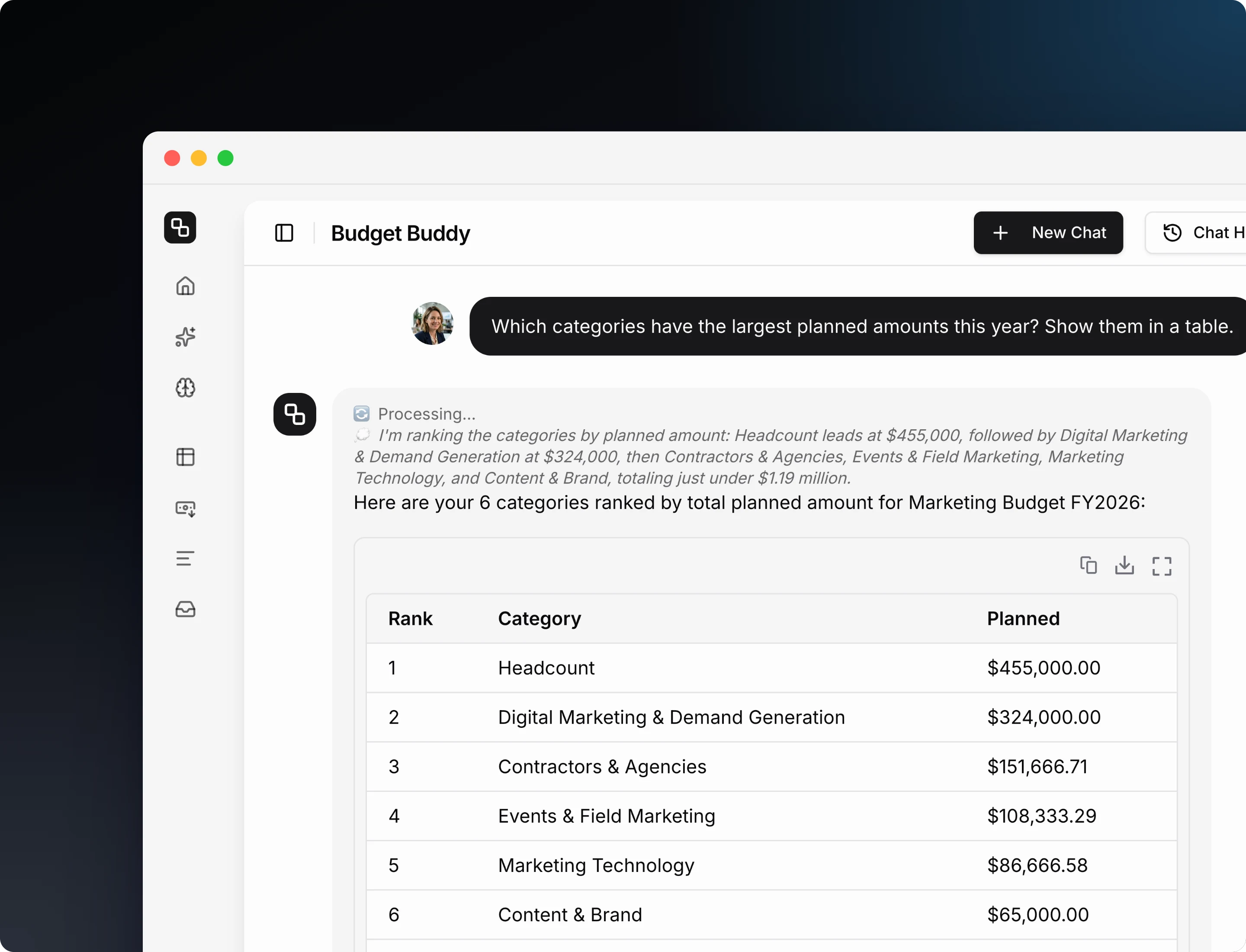
Etropo has one AI agent. It reads your budget, changes it, and uses your Marketing Brain. Ask in plain language, the way you would ask a colleague. You do not need exact names: “social media” finds LinkedIn Ads, Meta Ads, and TikTok Ads.
Where You Can Use It
The agent is the same wherever you talk to it. Pick the place you already work in:
| Where | How to start |
|---|---|
| Budget Buddy in the Etropo app | Click Budget Buddy in the sidebar. Conversations are saved |
| Slack | Mention @etropo in a channel or send the bot a direct message. See Slack |
| Microsoft Teams | Chat with the Etropo bot in Teams. An admin connects it under Integrations in the app |
| Claude | Add the official Etropo plugin. See Claude |
| ChatGPT | Add the official Etropo plugin. See ChatGPT |
| HubSpot Breeze agents | Install the Etropo app from the HubSpot Marketplace. See HubSpot Breeze Agents |
| Other AI tools | Connect any tool that supports MCP. See AI Assistants (MCP) |
Two tasks depend on where you are. Creating and activating budget versions works in Budget Buddy in the app only. Product help works in the app and in the Slack and Teams bots.
Everything the agent reads and writes applies to the active version of your budget.
Explore Your Budget
Find Line Items and Amounts
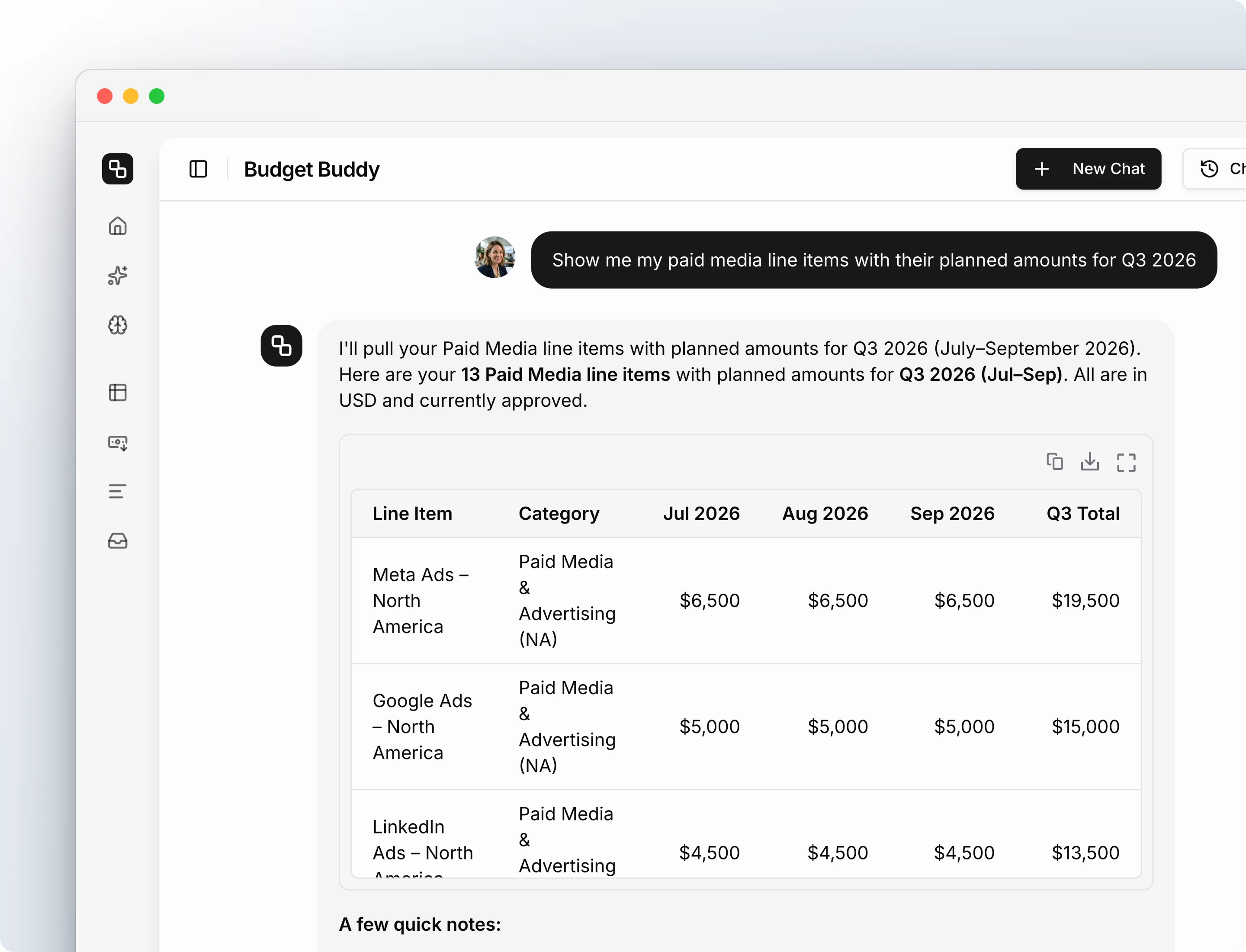
Describe the line items you want. The agent returns the matching line items with their category, currency, and planned and actual amounts for each month. Name a month, quarter, or year to limit the result to that period.
Example: “Show me my paid media line items with their planned amounts for Q3 2026”
Compare Planned Amounts with Actuals
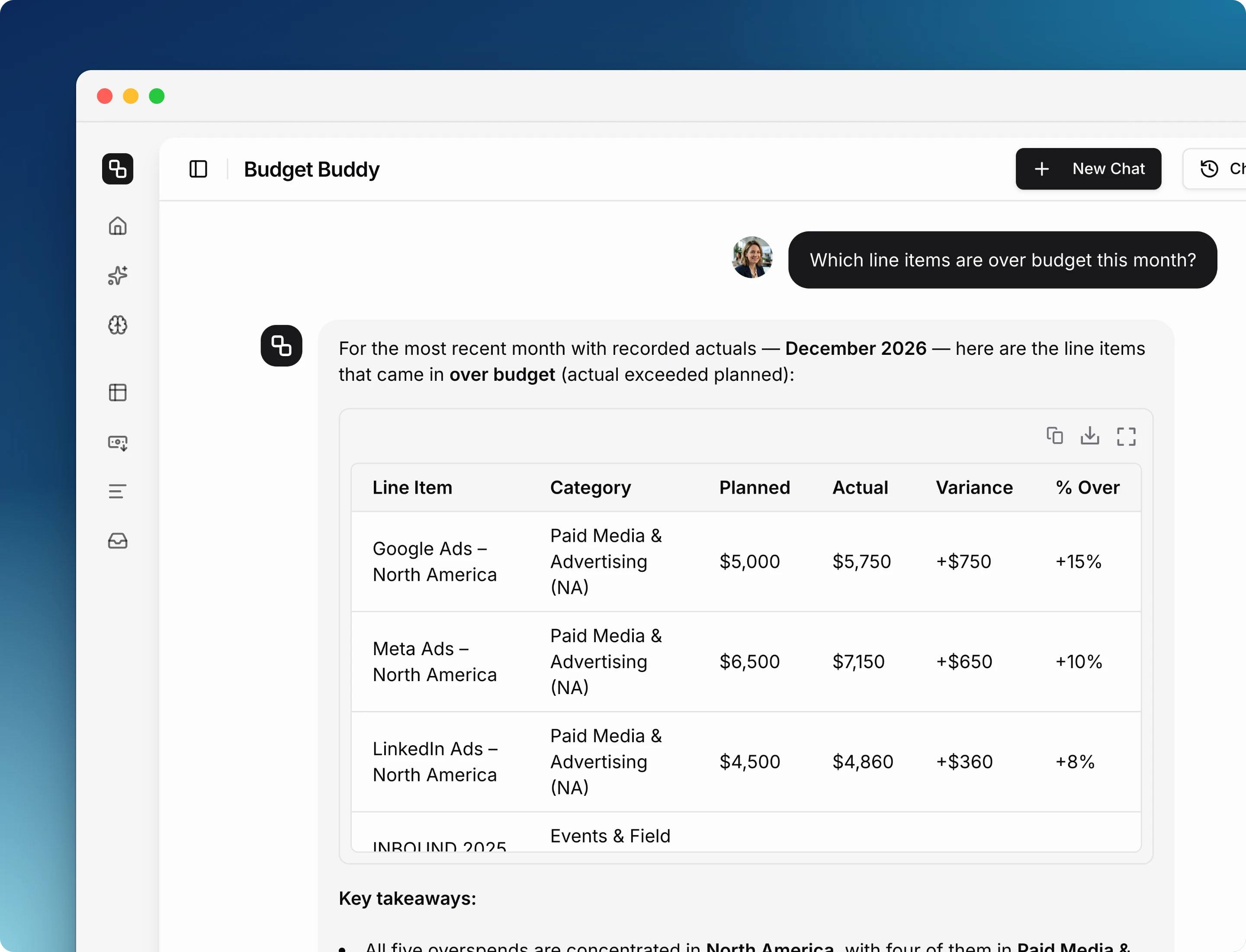
Ask where you are over or under budget. The agent calculates the difference between actuals and planned amounts for each line item, each category, and the whole budget, sorted by the size of the difference.
Example: “Which line items are over budget this month?”
See Spend by Channel
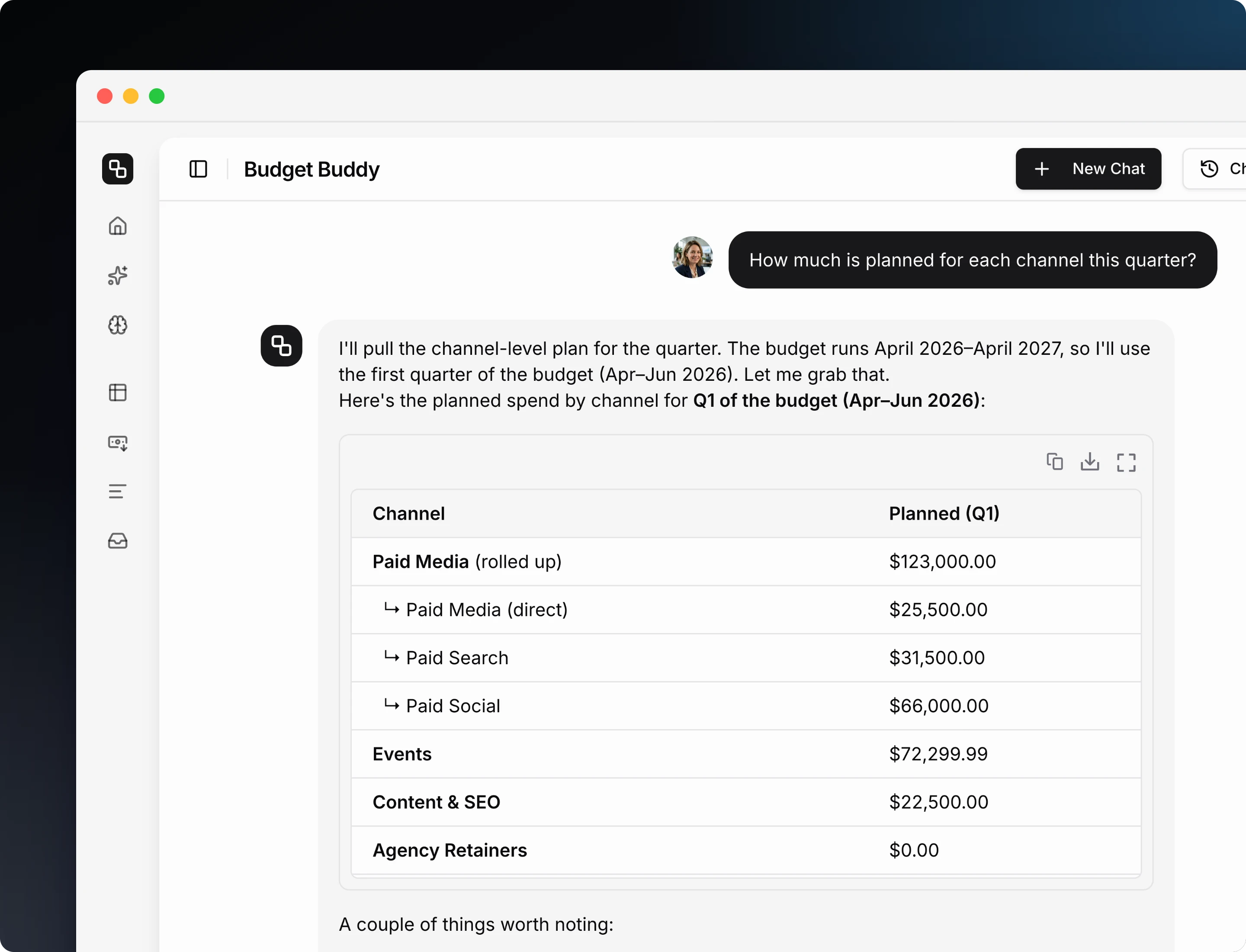
Ask about your marketing channels, such as Paid Search, Events, or SEO. The agent returns each channel with its planned and actual totals for the period you name, with child channels rolled up into their parent.
Example: “How much is planned for each channel this quarter?”
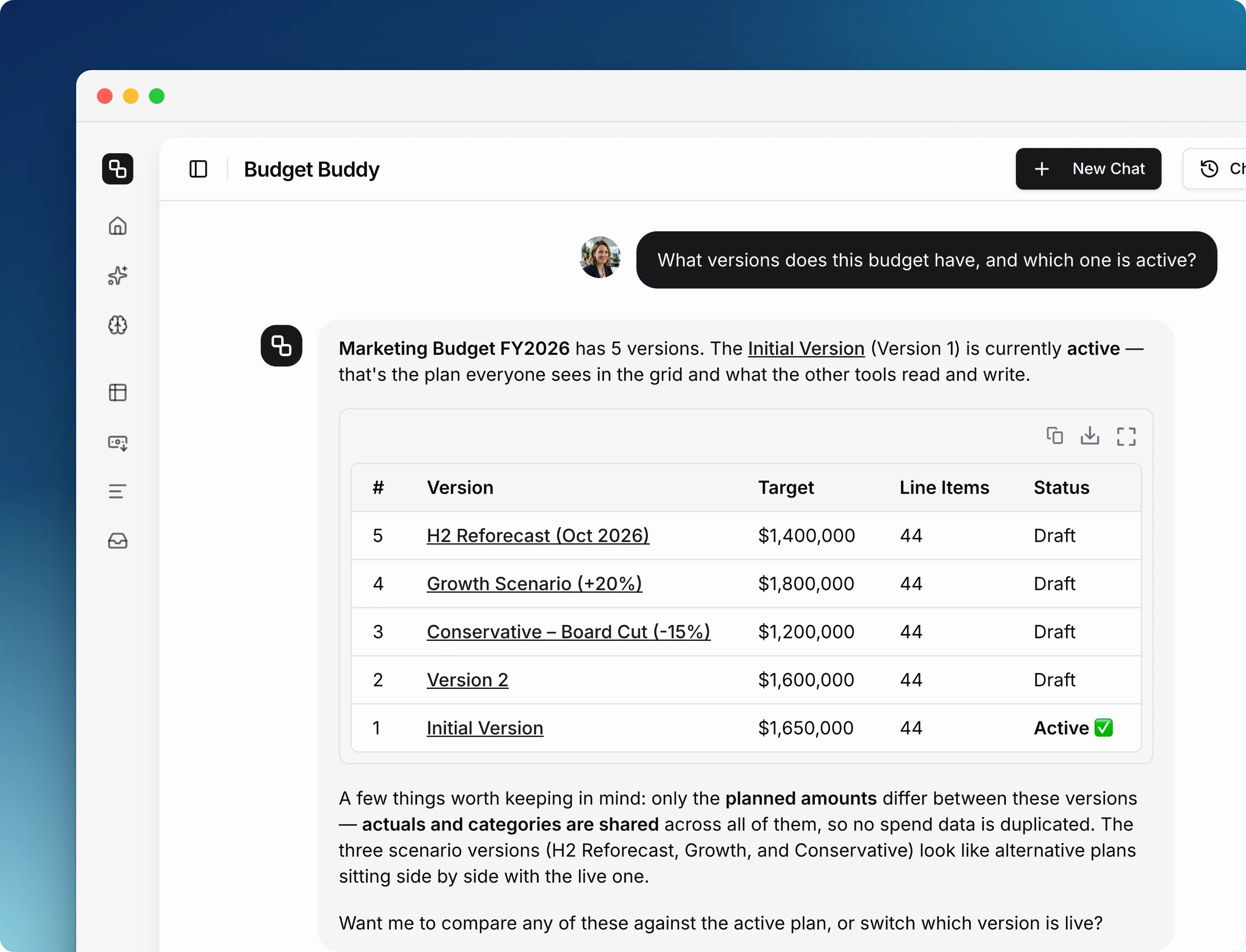
Check Budget Versions
Ask which versions a budget has. The agent lists each version with its name, target budget, line item count, and whether it is the active one.
Example: “What versions does this budget have, and which one is active?”
Update Your Budget
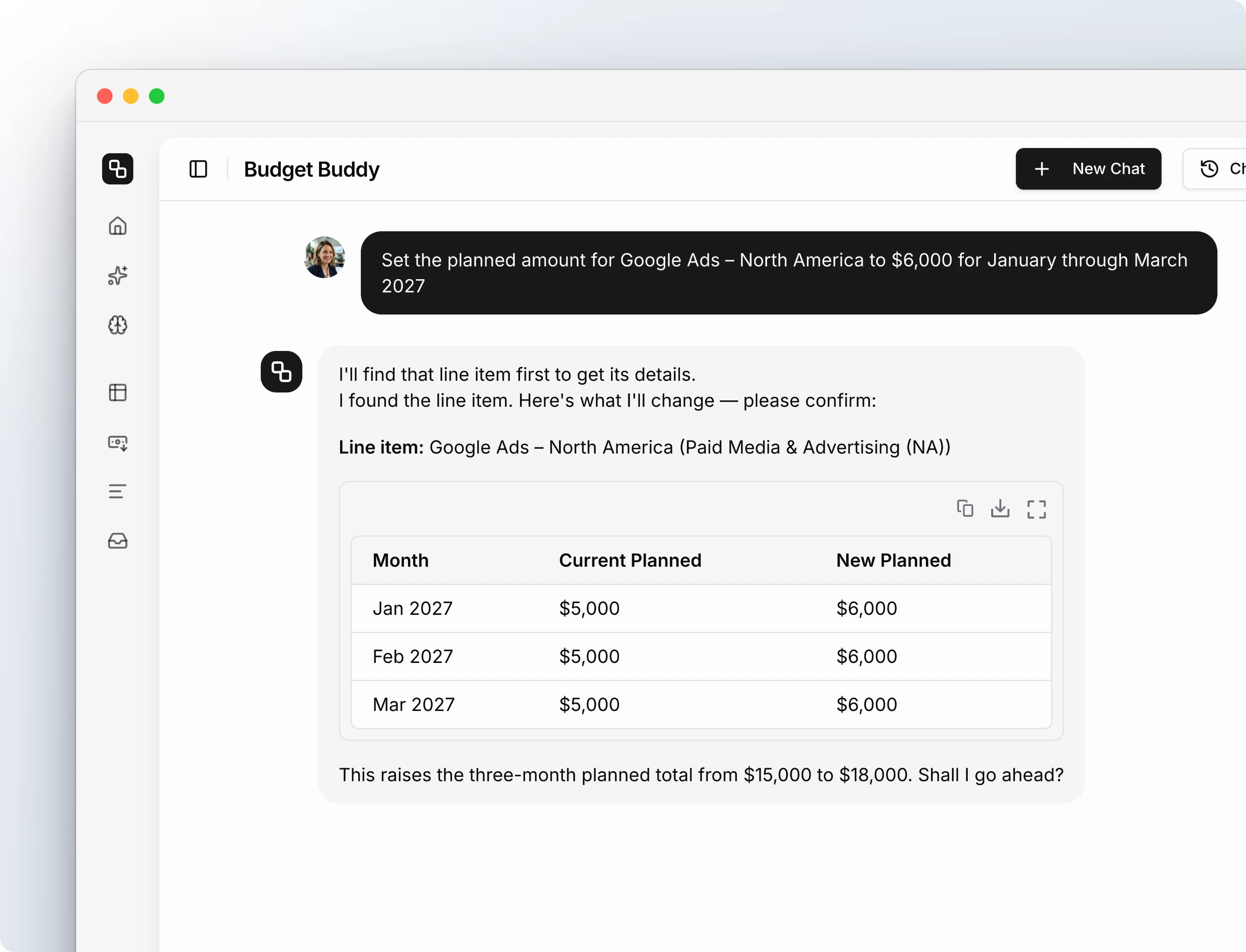
Before the agent saves a change, it shows you what it will change and asks you to confirm. After the change, it reports what it did.
Add Line Items
Name the category and the line item. You can set planned amounts and actuals in the same request. A new line item starts with the status Draft, with you as the owner, in your organization’s default currency unless you name another one.
Example: “Add a TikTok Ads line item to the Paid Social category with $5,000 planned per month for Q4”
Set Planned Amounts and Actuals
Name the line items, the months, and the amounts. The agent updates one line item or many in one request. Amounts you do not mention stay as they are.
The agent does not overwrite actuals of line items synced from an ad platform, or actuals of months that have expenses. It skips those amounts, tells you why, and applies the rest of your request.
Examples:
- “Set the planned amount for Google Ads – North America to $6,000 for January through March 2027”
- “Update September actuals: booth $12,500, speaker package $4,800, travel $2,750”
Approve, Reassign, and Reorganize
Ask the agent to change a line item’s approval status, owner, category, name, cost center, or currency. It changes up to 50 line items in one request and reports the old and new value for each one. To move a line item, you need access to both the old and the new category.
Examples:
- “Approve all Q2 line items under $5,000”
- “Make Sarah the owner of the events line items”
- “Move the webinar platform line item to the Tools category”
Create Categories
Ask for new categories, subcategories, or master categories. Only organization admins can create categories.
Example: “Create an Events category with subcategories for Conferences and Field Marketing”
Manage Budget Versions
Available in Budget Buddy in the app, for organization admins. See Budget Versions for how versions work.
Create and Activate Versions
Ask for a reforecast or a what-if scenario. The agent names the version and what it copies from, then waits for your yes. A new version copies the active plan and stays a draft, so nothing your team sees changes. When you ask the agent to activate a version, it tells you which integration connections moved and which did not find a match.
Actuals and categories are shared by every version. Only planned amounts differ.
Examples:
- “Create a Q4 reforecast version copied from the current plan”
- “Make the Q4 Reforecast version active”
Use Your Marketing Brain
Your Marketing Brain is your organization’s marketing knowledge base: company overview, go-to-market, personas, products, metric definitions, and learnings. The agent uses it to give answers that match how your team works.
Search and Read
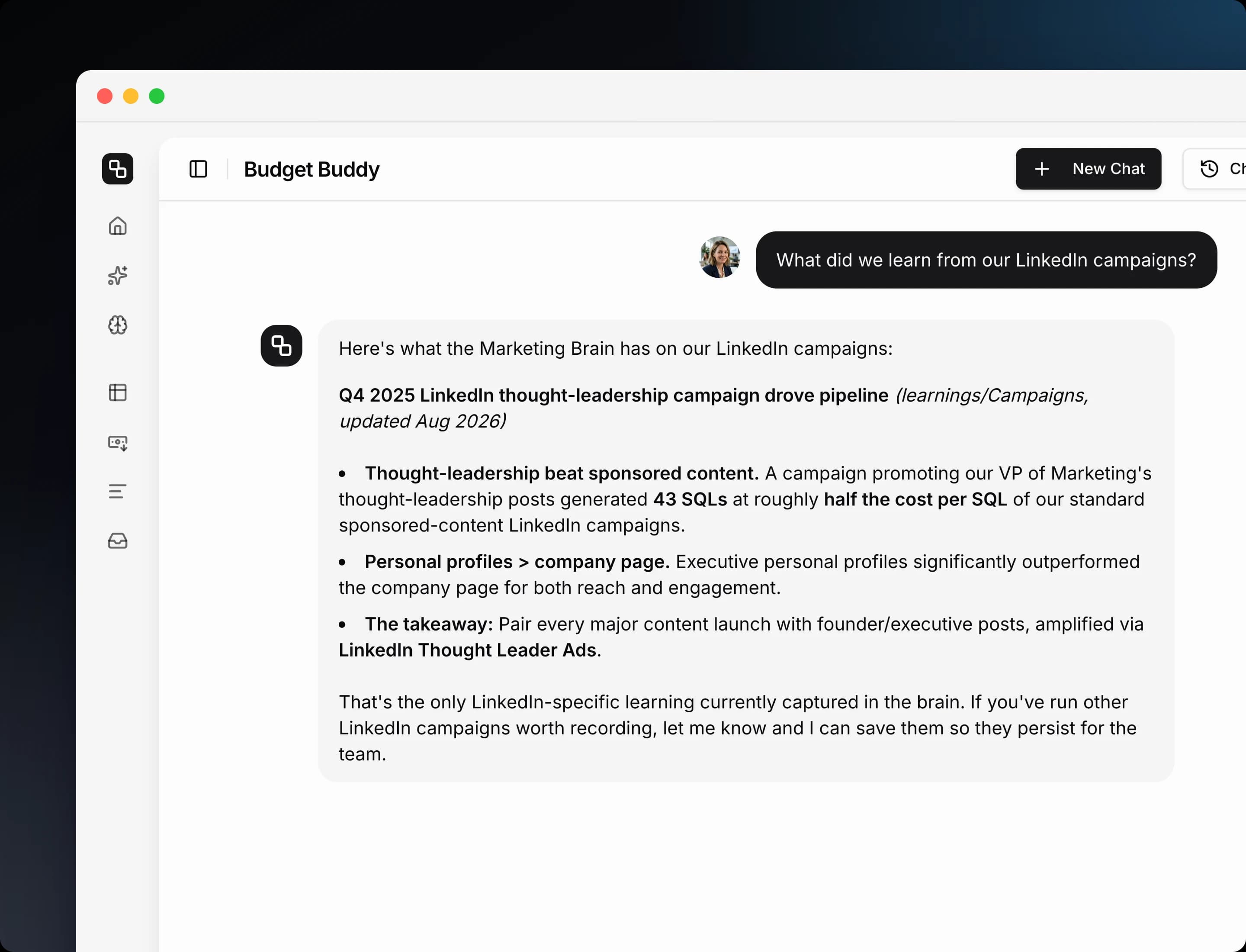
Ask a question. The agent searches your Marketing Brain, reads the relevant entries, and summarizes what it finds.
Example: “What did we learn from our LinkedIn campaigns?”
Save New Learnings
When a conversation produces a result, an insight, or a decision worth keeping, ask the agent to save it to your Marketing Brain. It shows you the title and the text and saves them after you confirm.
Example: “Save this as a learning: webinars with a customer co-host converted twice as well as solo webinars in Q2”
Get Product Help
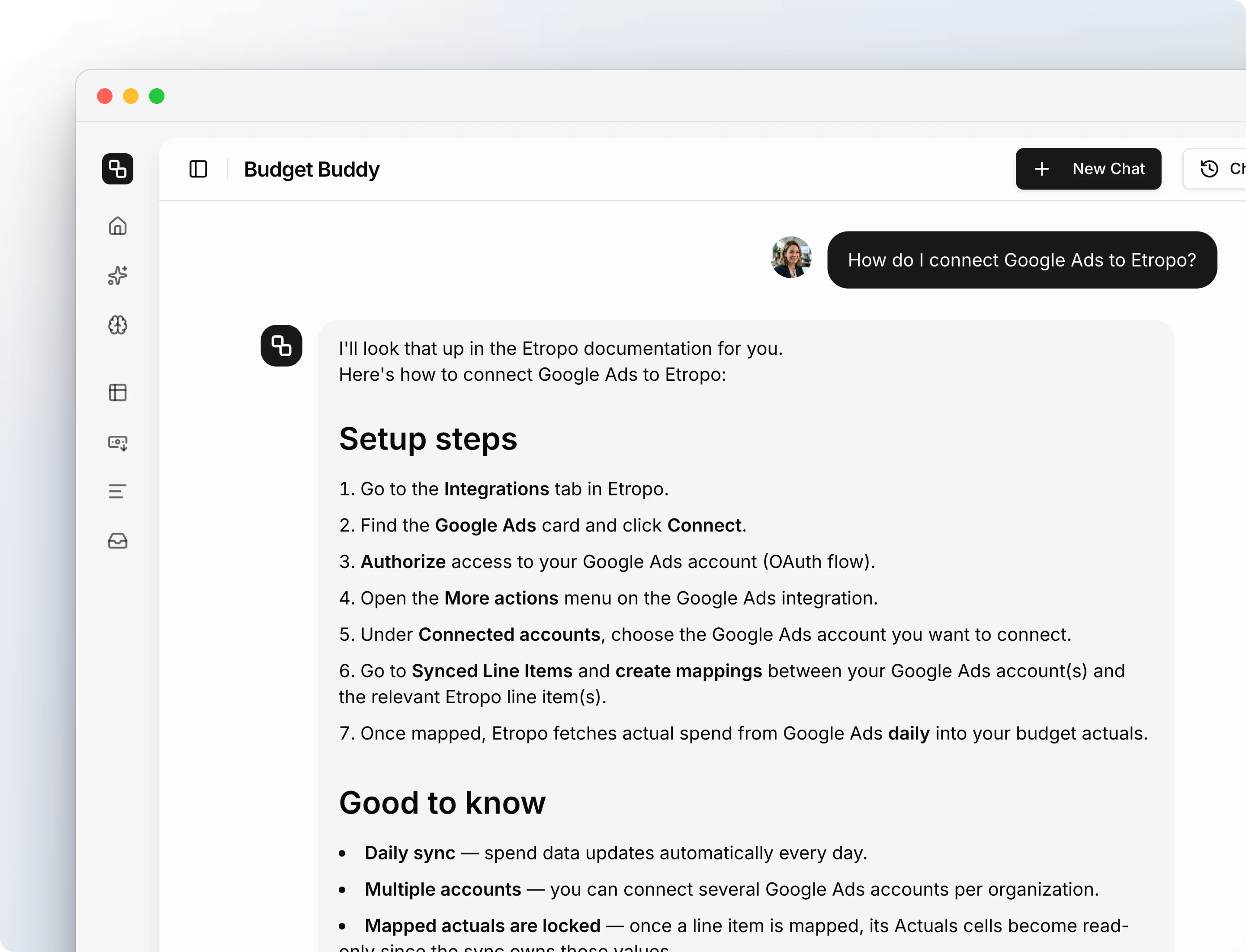
Ask how an Etropo feature works. The agent answers from this documentation. Works in Budget Buddy in the app and in the Slack and Teams bots.
Example: “How do I connect Google Ads to Etropo?”
Put It Together
The agent can combine these tasks with everything else it does in one conversation.
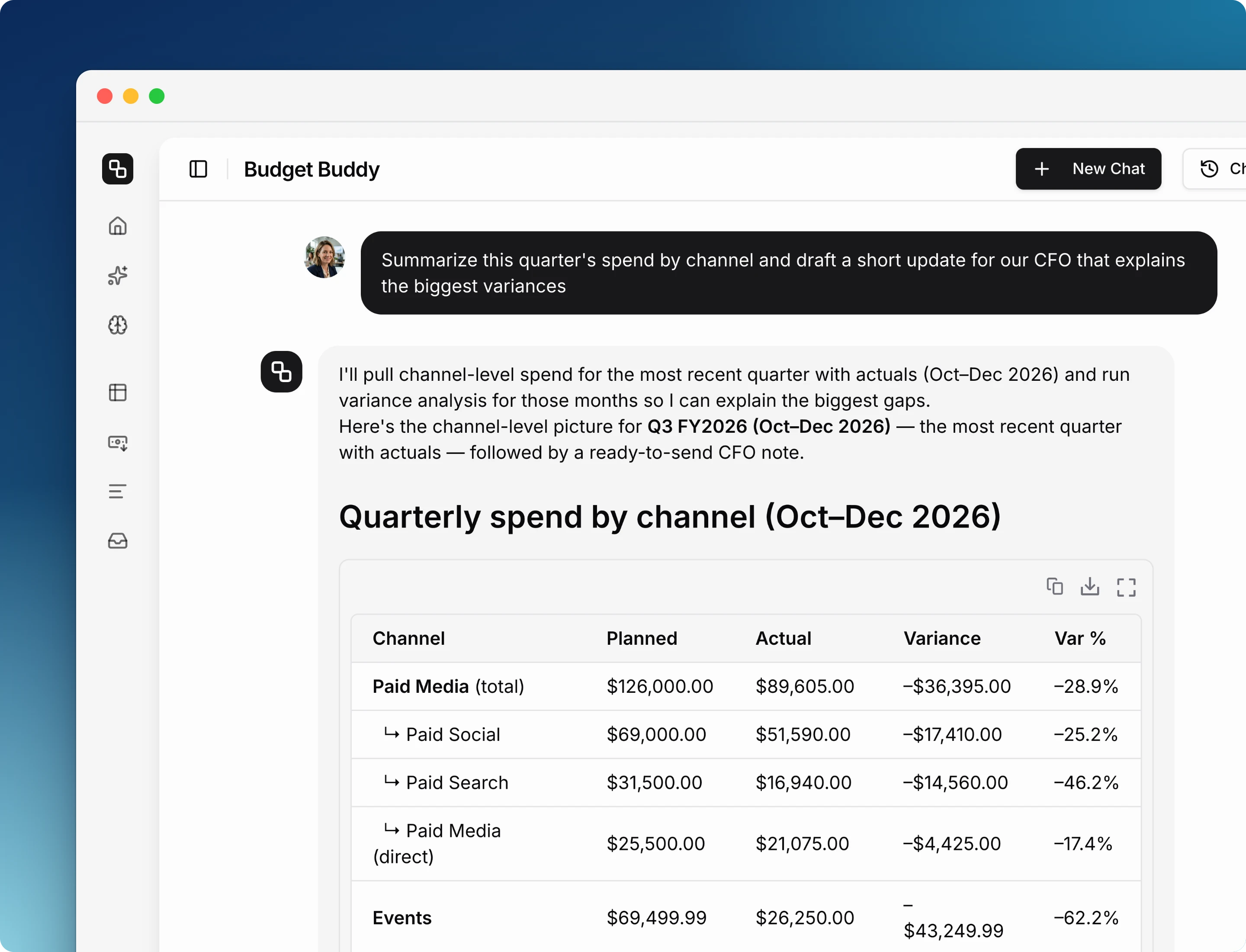
Leadership Updates
Scenario: You need a short spend summary for your CFO.
Example: “Summarize this quarter’s spend by channel and draft a short update for our CFO that explains the biggest variances”
Result: A draft built on your real numbers, ready for you to edit.
Planning with Context
Scenario: You decide where to put next quarter’s budget.
Example: “Based on our campaign learnings and this year’s spend by channel, where should we shift budget next quarter?”
Result: Suggestions based on your numbers and on what your team has learned.
Tips
- Be specific. Name the line items and the month, quarter, or year you mean. “Q1 Google Ads spend” gives a better result than “show me everything”
- Name the budget. If you have more than one, say which one you mean
- Ask follow-up questions. The agent keeps the context of the conversation, so you can drill down without repeating yourself
- Review changes. Updates save straight to your budget, and the agent cannot undo them. Read its summary and check the result in Etropo
- Name Etropo. In Claude, ChatGPT, or another AI tool, if the assistant does not use Etropo on its own, ask it to: “Using Etropo, …”
For additional help you can reach out to our support team at: help@etropo.com