Two-Factor Authentication (2FA)
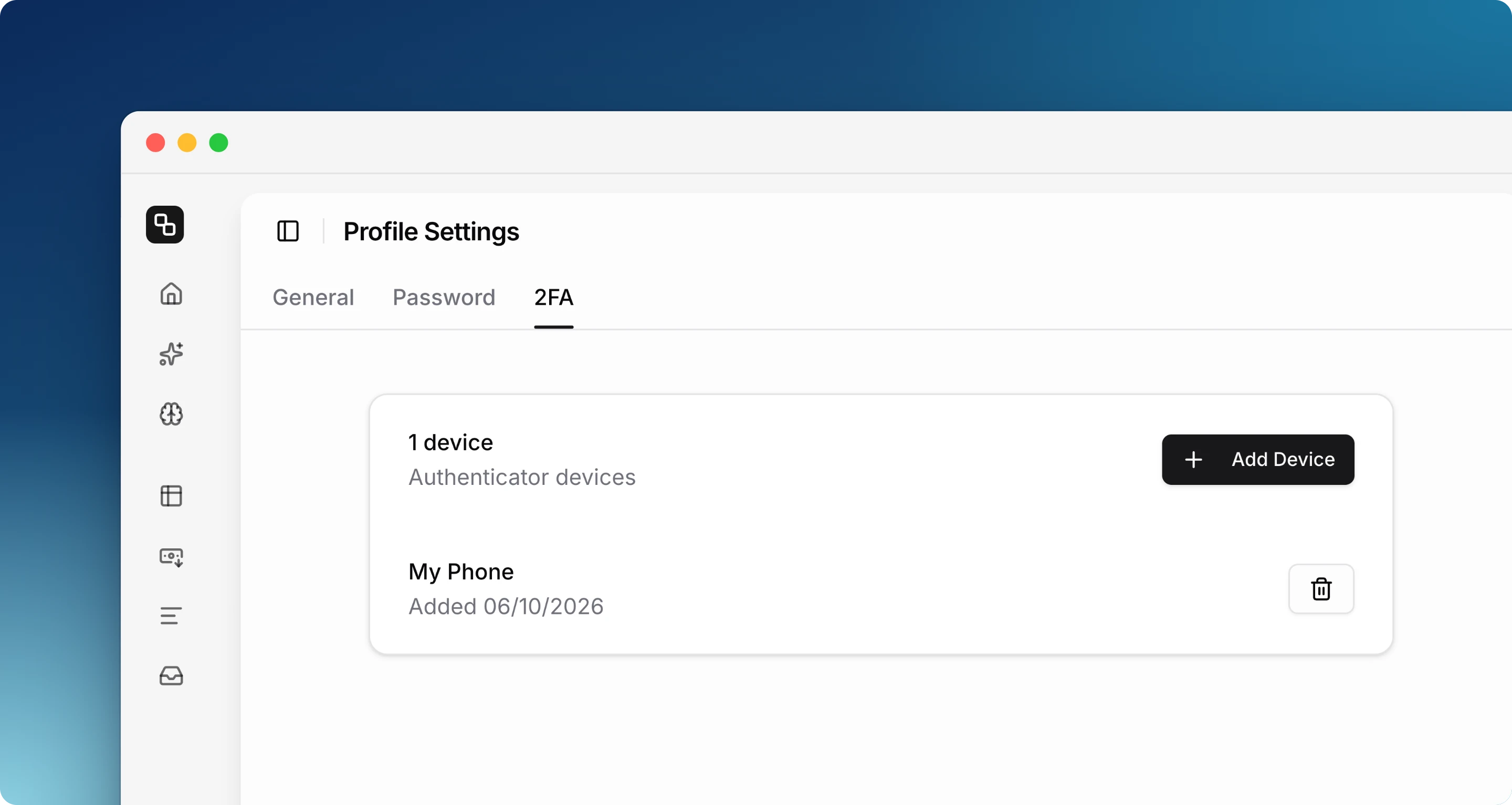
With 2FA, you sign in with your password and a 6-digit code from an authenticator app. Etropo supports authenticator apps (TOTP) such as Google Authenticator, Authy, 1Password, or Microsoft Authenticator. SMS codes are not supported.
Enable 2FA
- Open the user menu at the bottom of the sidebar and click Profile.
- Click the 2FA tab.
- Click Enable 2FA.
- Enter a Device Name, for example “My Phone”, and click Continue.
- Scan the QR code with your authenticator app.
- Enter the 6-digit code from the app and click Verify & Enable.
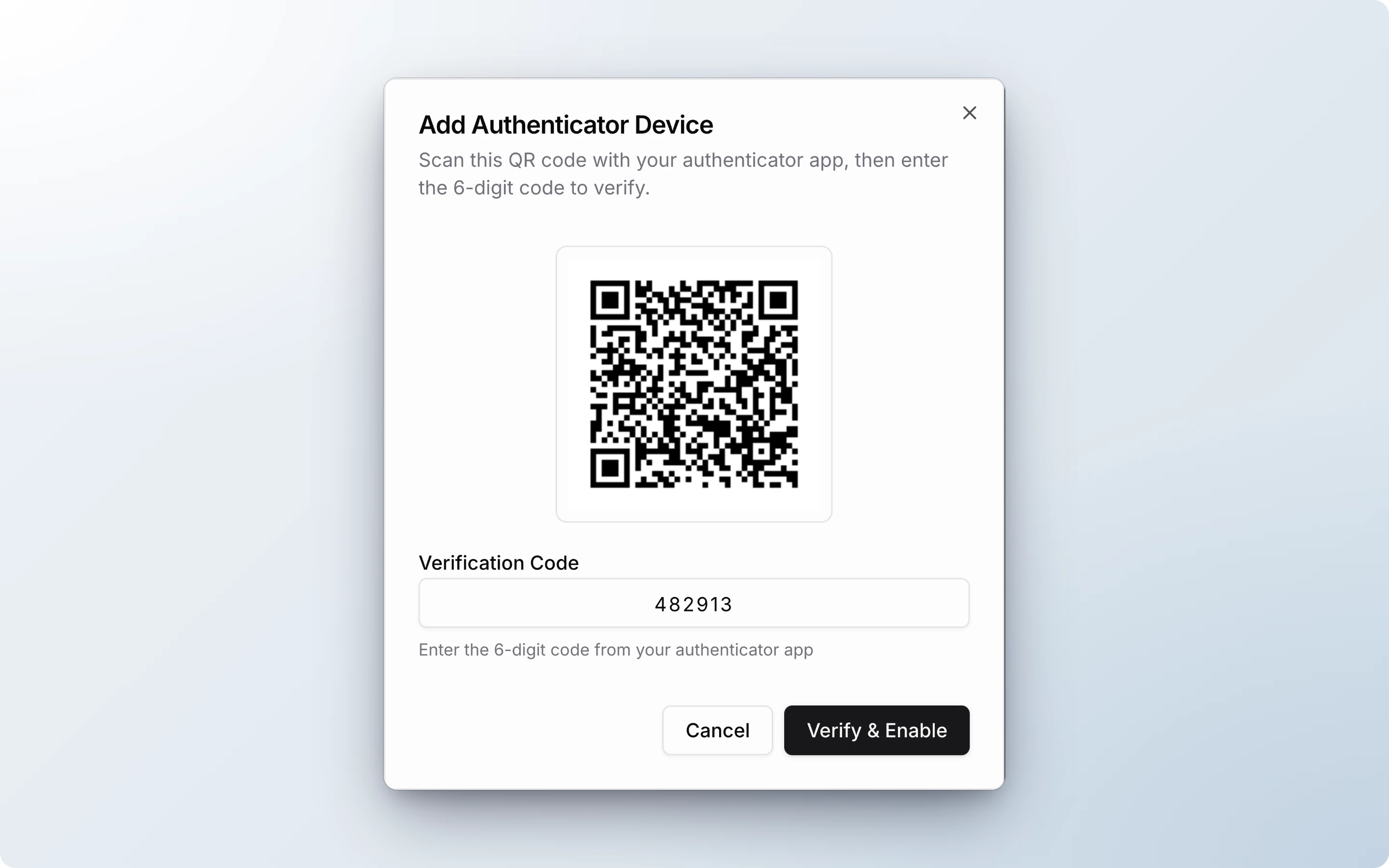
The device appears in the list under the 2FA tab. If you close the dialog before you verify the code, the device is not added.
Sign in with 2FA
- Enter your email and password and click Sign in.
- Enter the 6-digit code from your authenticator app.
- Click Verify.
The prompt shows which device to use. If you have two devices, click Use different authenticator to switch.
A code is valid for 30 seconds. If it expires, enter the next one.
Add a backup device
Add a second device so you can still sign in if you lose the first one. You can have up to 2 devices.
- Go to Profile → 2FA.
- Click Add Device.
- Follow the same steps as in Enable 2FA.
If you get a new phone, add it as the second device first, then remove the old one.
Remove a device
- Go to Profile → 2FA.
- Click the trash icon next to the device.
- If Etropo asks you to verify your identity, enter a code from the device you are removing and click Verify.
- Click Remove Device.
Etropo skips step 3 if you signed in with a 2FA code in the current session.
Important: If you remove your only device, 2FA is turned off and you sign in with your password only.
Change your password with 2FA enabled
- Go to Profile → Password.
- Click Change Password.
- If Etropo asks for it, enter a 2FA code and click Verify.
- Enter and confirm the new password, then click Update Password.
Without 2FA, Change Password sends a reset link to your email and signs you out.
Lost your device?
If you have a backup device, sign in with a code from it, then remove the lost device. If you have no backup device, contact support at help@etropo.com.