Import a Budget
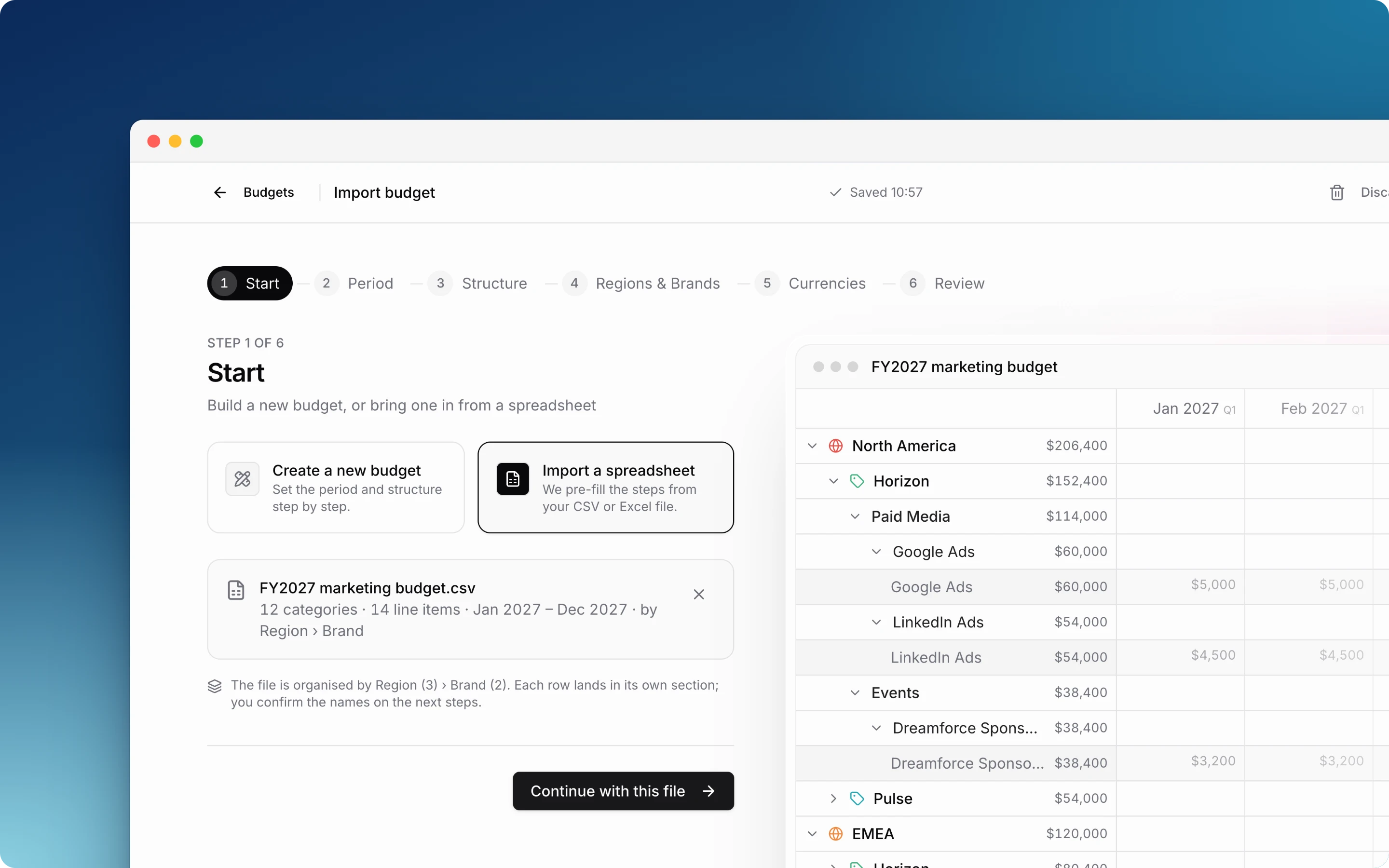
Already have a budget in a spreadsheet? Upload it on the first step of the budget creator. Etropo reads the file and pre-fills the period, the regions or brands, the categories and the line items. You confirm each step, then Etropo creates the budget.
Starting from nothing? Create a budget instead.
Before you start
- Only organization administrators can import budgets.
- The file must be a CSV or Excel file (
.xlsxor.xls), up to 10 MB. - Etropo reads planned amounts only. Add actuals after the import.
- Every currency in the file must exist in your Currencies settings.
Prepare your spreadsheet
Etropo looks for these parts in the file:
- Month columns. Headers such as
Jan 2026,January 2026,2026-01orJan-26. The first and last month columns set the budget period. - One row per line item. Each row holds the planned amount for each month.
- Categories. Rows or a column that group the line items. Categories can also have master categories above them, for example “Paid Media” with “Search” and “Social” under it.
- Regions, brands or other groups. A column such as Region, Brand, Market or Business unit, or one sheet per region. Etropo turns up to two of them into custom levels and places each row in its region or brand.
- A currency code, such as
USD, if the budget does not use your default currency. Optional.
Other columns, for example owner or status, are not imported. Set those properties in the Budget Editor after the import.
One import can create up to 1,000 line items. Split a larger budget into two files.
Import the file
- Go to All budgets and click Create budget.
- On the Start step, choose Import a spreadsheet.
- Drop the file into the upload area, or click it to choose the file.
- Wait for the analysis, then click Continue with this file.
The analysis shows the period, the custom levels, and the number of categories and line items Etropo finds. Keep the page open until it finishes.
If the file has no month columns, Etropo keeps its structure and asks you for the period on the next step.
Confirm the pre-filled steps
Every step after Start is filled in from your file. Check each one and click Continue.
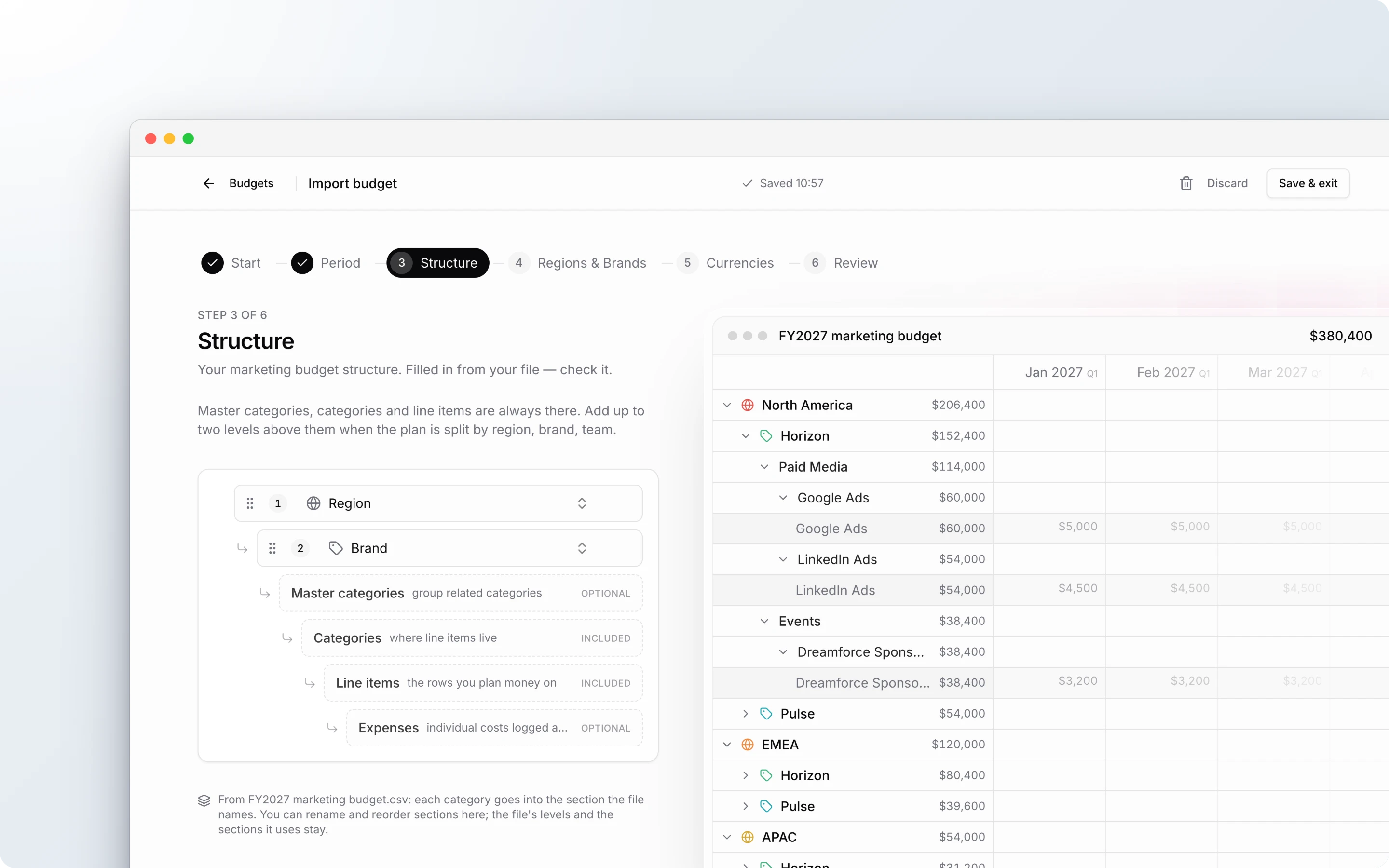
- Period. The first and last month of the file. Change it if the file covers more than 24 months; amounts outside the period are left out.
- Structure. The custom levels found in the file, for example Region › Brand. You can rename a custom level or swap the two. You cannot add or remove a custom level, because the rows of the file belong to them.
- Items of each custom level (the step is named after your custom levels, for example Regions & Brands). The items found in the file, for example the regions and brands. You can rename an item and its rows follow it. You cannot remove an item that the file places rows in.
- Currencies. The currencies found in the file. Tick more if you need them.
- Review. The budget name, taken from the file name, and a summary of what will be created. Change the name, then click Create budget.
Etropo opens the new budget in the Budget Editor.
After the import
- Status. Your first budget is Active. Every later budget starts as a Draft. Change the status from the Budget List.
- Version. The budget starts with Version 1. Learn more about budget versions.
- Line items. Review the names and planned amounts in the Budget Editor and assign owners. Learn more in the Budget Editor guide.
- Team. Invite your team so owners can update actuals.
For additional help you can reach out to our support team at: help@etropo.com