Budget Versions
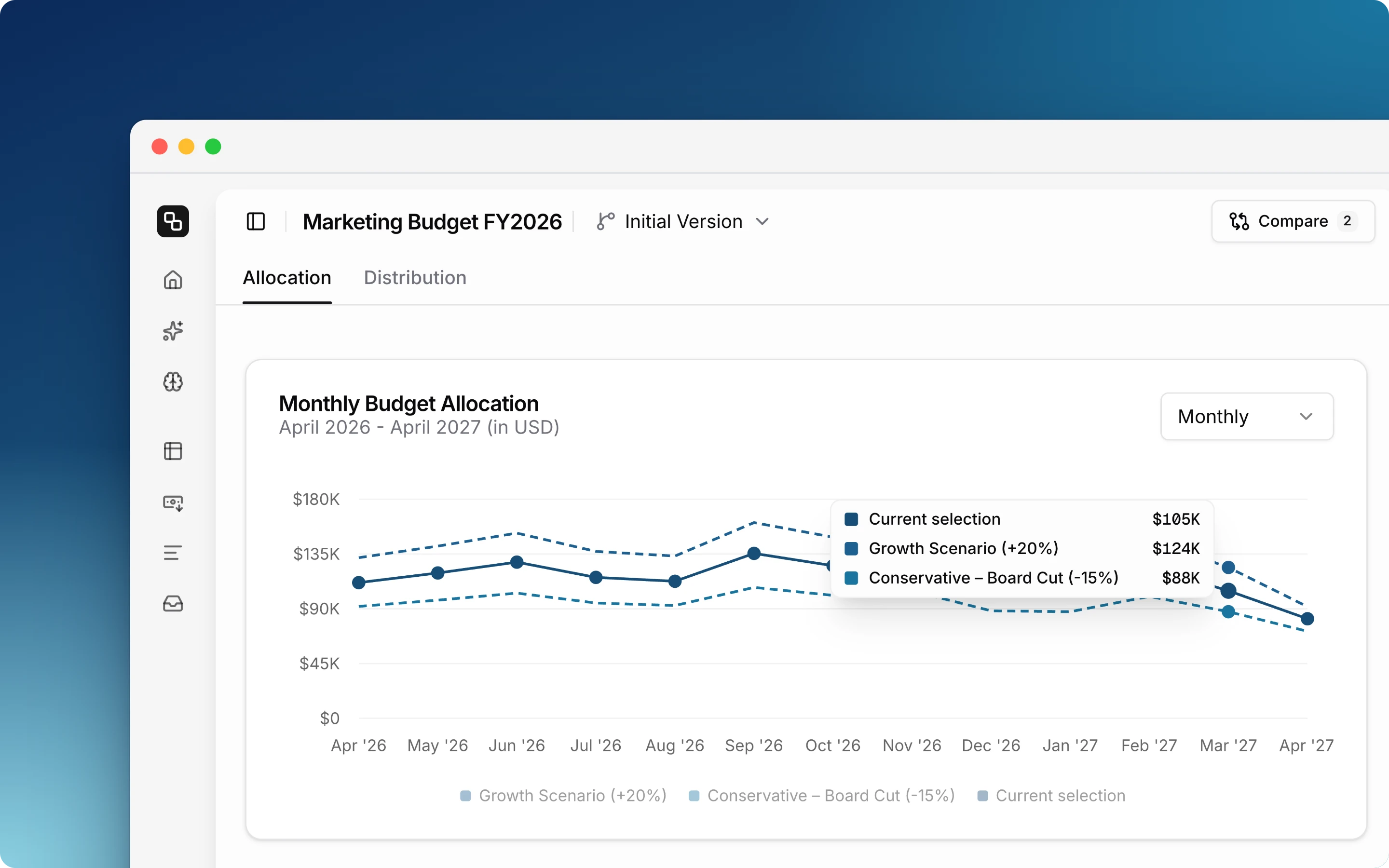
A budget can hold more than one version of its plan. Use a version for a reforecast or a scenario, compare it with the live plan, and make it active when the decision is made. Versions are available on the Pro and Custom plans.
How versions work
Each version has its own plan. Everything else belongs to the budget and is the same in every version.
Per version:
- Line items
- Planned amounts
- Targets, including the budget target
Shared by all versions:
- Actuals. Manual entries, invoices, and ad platform syncs show the same values in every version.
- Categories
- Category access
One version is always active. The active version is what your team sees by default and what your integrations write to.
Switch between versions
The version switcher is in the header of the Budget Editor, the Allocation dashboard and the Forecasts page. It appears when the budget has more than one version. Admins always see it.
- Click the version name in the header.
- Click the version you want to open. The Active badge marks the live plan.
The selected version stays with you when you move between the Budget Editor, the Allocation dashboard and the Forecasts page. The version is also part of the page address, so you can send a teammate a link to it.
You can also open a version from the All budgets page. Expand a budget to see its versions.
Create a version
Only admins can create versions.
- Click the version name in the header, then New version….
- Follow the steps in the dialog, then click Create version.
The dialog asks for a name, the version to copy from, and the Budget amount. The budget amount is the budget target of the new version. A copied version also gets the targets of the version it copies. You can start the version in three ways:
- Copy a version with Copy planned amounts on to start from its numbers.
- Copy a version with Copy planned amounts off to keep its line items with empty plans.
- Click Start empty to start with no line items.
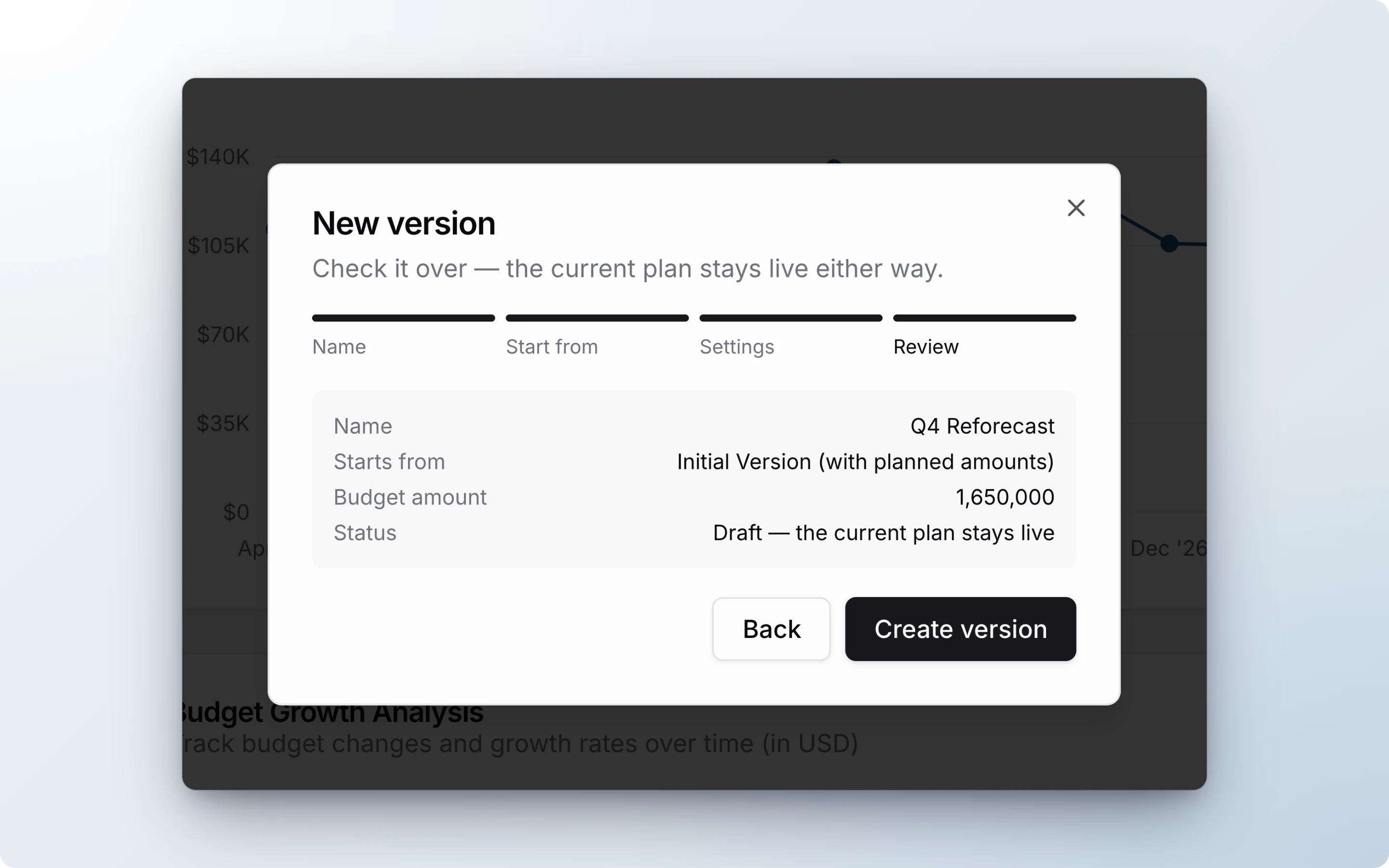
The new version is a draft. Etropo opens it for you, and the rest of your team continues to see the active version.
Make a version active
Only admins can activate a version.
- Open the version you want to activate.
- Click Make this version active next to the version switcher.
When you activate a version:
- The Budget Editor, the Allocation dashboard, the Forecasts page and the budget list show the new version to everyone.
- Google Ads, LinkedIn Ads, Meta Ads, and TikTok Ads mappings move to the line items with the same name in the new version. Google Sheets connections move to the new version.
- The previous version keeps all of its data. You can activate it again at any time.
Etropo shows which connections moved. If a mapped line item has no match in the new version, the mapping stays on the previous version and Etropo names the line item. Its spend still syncs to the shared actuals. To move it, open the integration’s Synced Line Items tab and map the account to a line item in the new version.
Compare versions
The Compare button is on the Allocation tab of the Allocation dashboard. The Distribution tab has stacked charts, so it cannot show a comparison.
- Open the Allocation dashboard and select the version you want to use as the baseline.
- Click Compare.
- Select up to four versions.
The Monthly Budget Allocation chart draws each selected version as a dashed line. The Budget Growth Analysis table adds a column for each selected version. Click Clear comparison to remove them.
Manage versions
Only admins can rename and delete versions.
- Click the version name in the header.
- Click Manage versions….
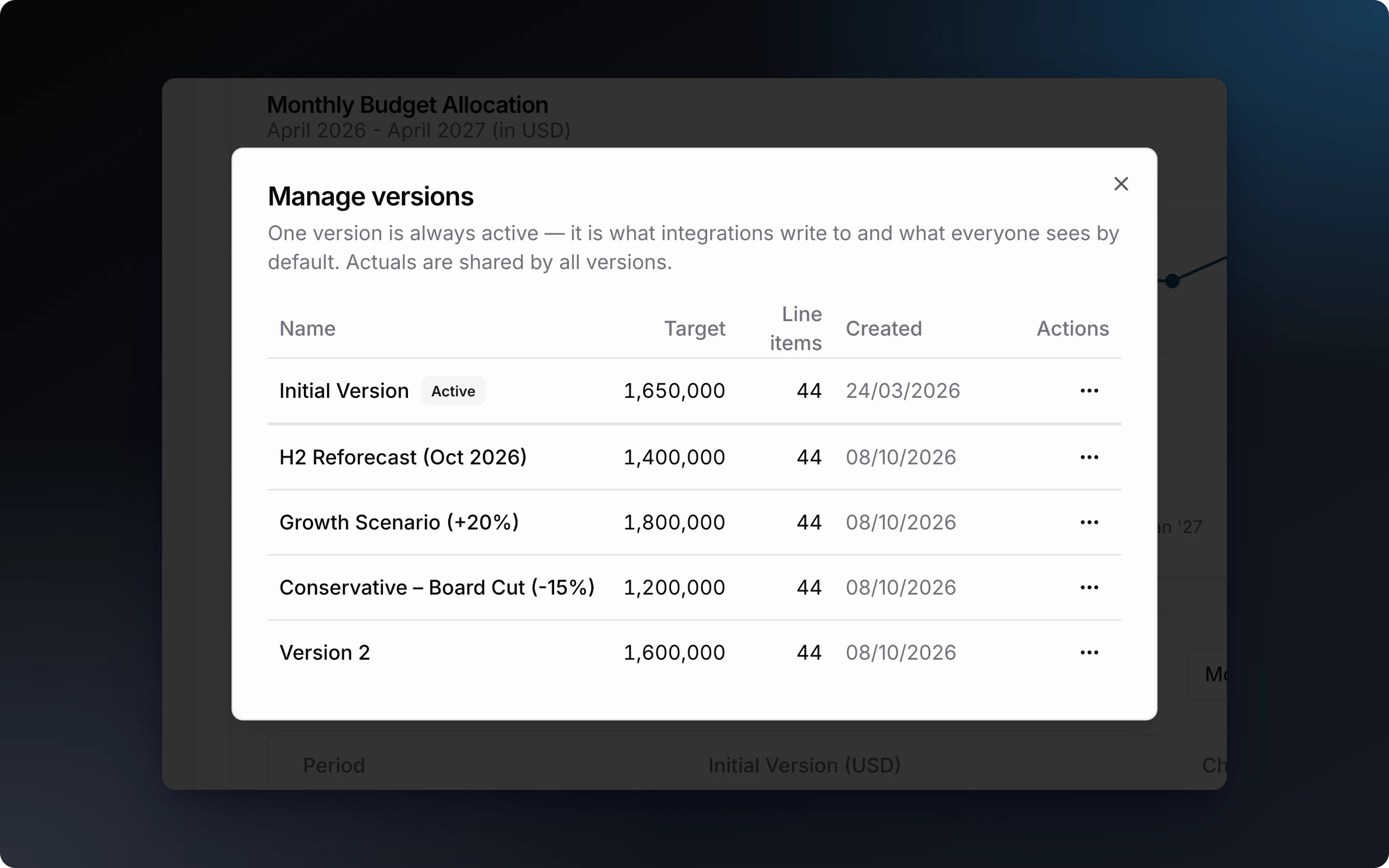
The active version is listed first. Each row shows the budget amount, the number of line items, and the creation date. Use the row’s actions menu to Rename, Make active, or Delete a version.
Delete a version
- Open Manage versions….
- Click the actions menu in the version’s row, then click Delete.
- Read the summary, then click Delete version.
Deleting a version removes its line items, disconnects its Google Sheets connections, and removes its ad platform mappings. Actuals stay in the other versions. You cannot delete the active version or the last version of a budget. Deletion cannot be undone.
Permissions
- Admins can create, rename, activate, and delete versions.
- All members can open and switch between the versions of a budget they have access to.
Versions do not change who can see what. Access is set per category and applies to every version. See Access Control.
For additional help you can reach out to our support team at: help@etropo.com