Dashboards
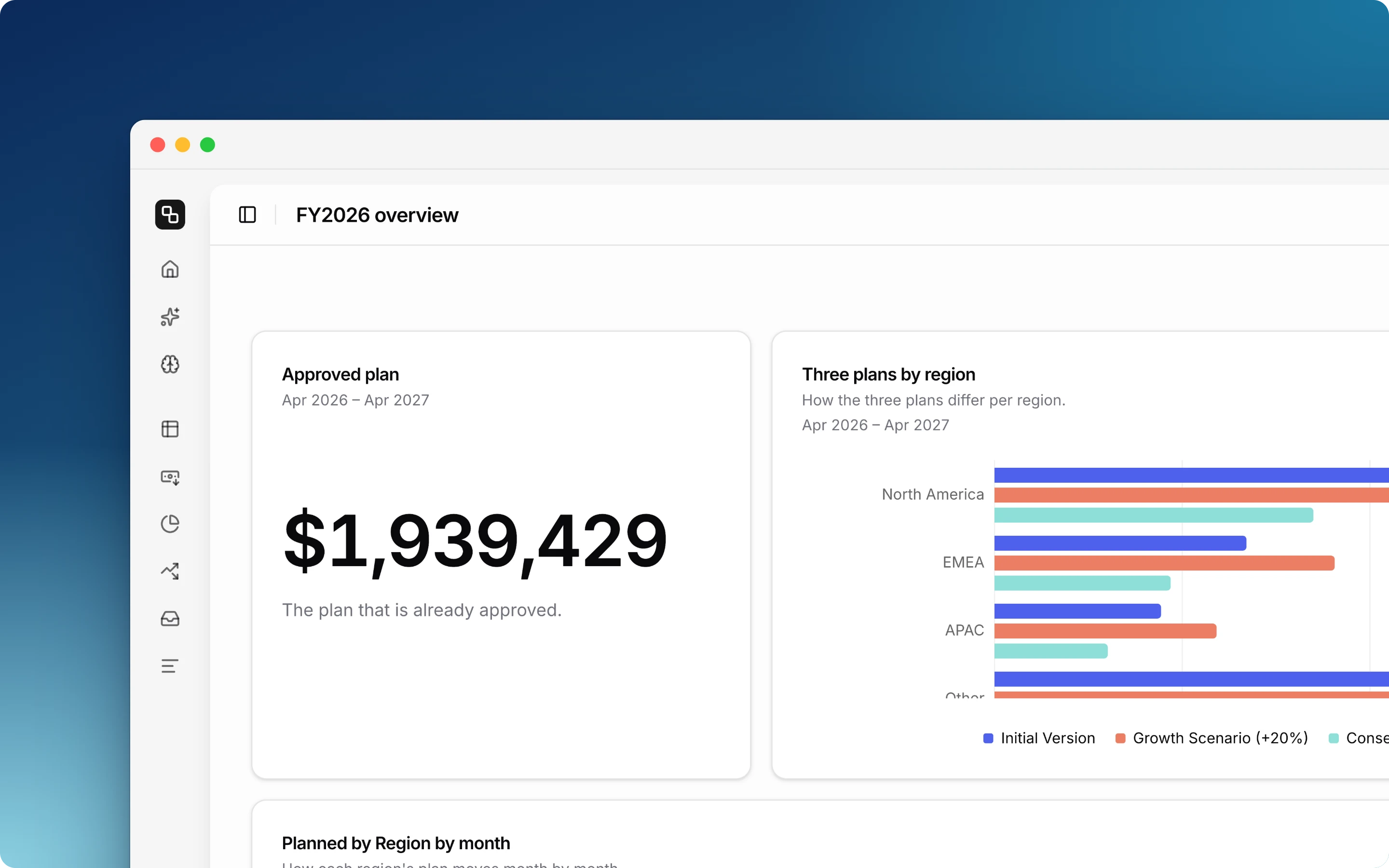

A dashboard is a page of charts, tables and single numbers that read live from your budget. You do not build the widgets by hand. You tell Budget Buddy what you want to see, and it adds them. Every member of your organization can create and change dashboards.
Note: Dashboards are in beta and may still change.
Create a Dashboard
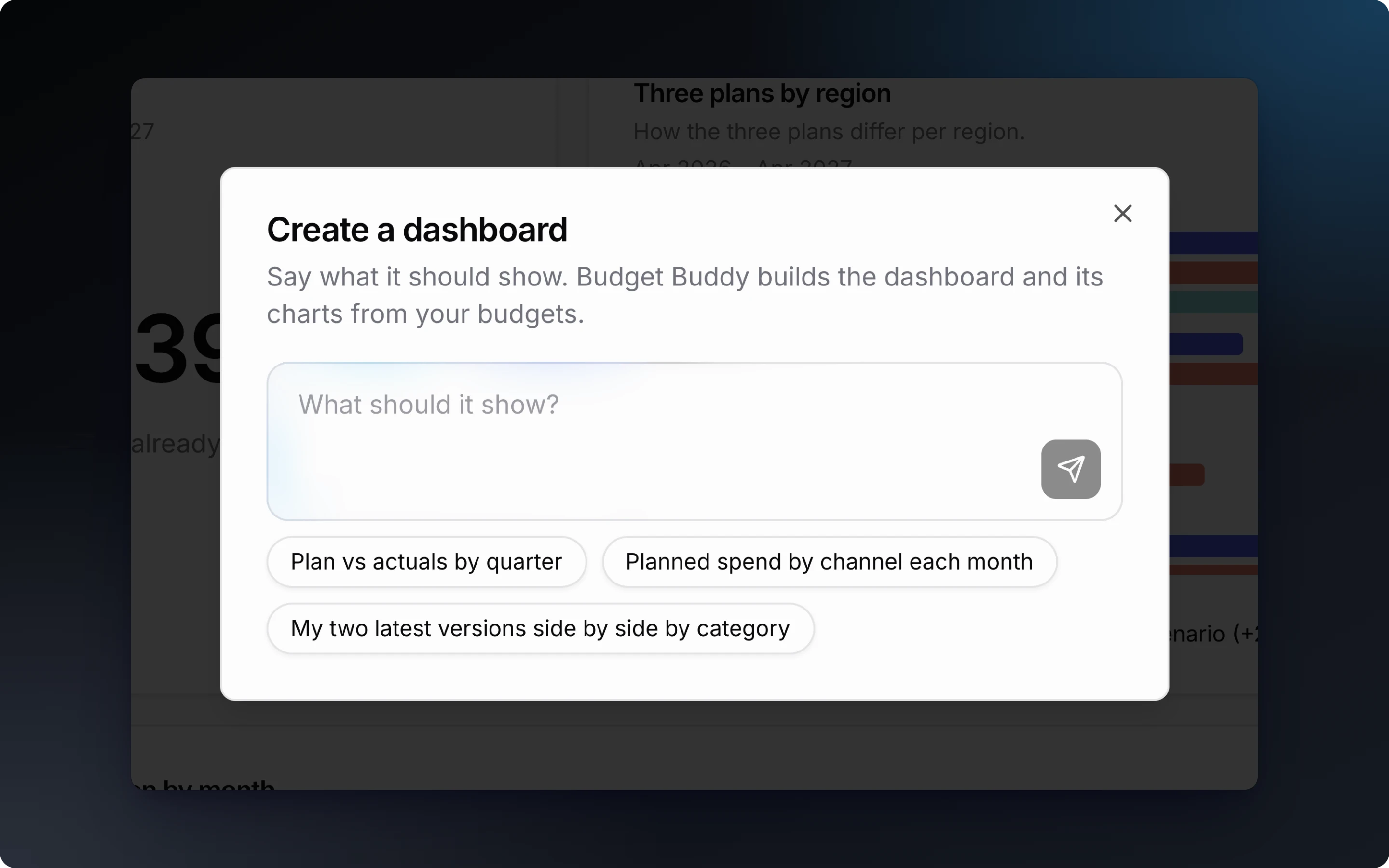
- In the sidebar, next to Dashboards, click +.
- Say what the dashboard should show, for example “Plan vs actuals by quarter”, and send it.
Budget Buddy names the dashboard, adds the widgets and opens it. When a request can be read in more than one way, Budget Buddy asks you to choose before it adds anything.
Add a Widget
On a dashboard, type what you want to see in the box above the widgets and send it. One request adds one widget.
A widget can show:
- A measure: planned amount, actuals, or variance (actuals minus planned amount).
- A breakdown: by category, item of a custom level (for example a region or a brand), channel, cost center, owner, status, property or line item.
- Time: by month, quarter, half-year or year.
- Versions: up to four versions of a budget on one widget. Versions differ in planned amounts only. Actuals are shared, so a comparison of versions shows planned amounts or variance.

Budget Buddy chooses the chart that fits the request: bars, a line or an area chart, a donut, a table or one big number. It also writes a one-sentence description under the title. A dashboard holds up to 24 widgets.

Examples:
- “Add a chart of planned spend by channel each month”
- “How much is approved”
- “Initial Version vs Growth Scenario planned by region”
Change a Widget
- Open the ⋮ menu on the card and click Edit. Budget Buddy opens with the widget selected.
- Say what should change: “make it quarterly”, “show the top 5”, “make it wider”.
To change the title or the description, click the text on the card, edit it, and press Enter. A description you wrote stays. Budget Buddy does not replace it.
Arrange the Dashboard
Widgets sit in rows of up to three columns.
- Move a widget: drag it by its header into another row. Drop it on the line between two rows to make a new row.
- Change the width: drag the widget’s right edge. A widget is one third, two thirds or the full row wide.
- Change the height: drag the line under a row. Every widget in the row takes the new height.
With the keyboard: Tab to a handle, then use the arrow keys.
Rename or Delete a Dashboard
- To rename a dashboard, click its name in the header, edit it, and press Enter.
- To delete a dashboard, open the ⋮ menu in the header and click Delete dashboard.
- To delete one widget, open the ⋮ menu on its card and click Delete.
What Each Member Sees
The numbers on a widget follow your category access: a member sees the totals of the categories they can open. Titles and descriptions are the same for everyone.
A widget on a budget with a missing exchange rate shows a notice until an admin adds the rate under Currencies.
For additional help you can reach out to our support team at: help@etropo.com