Budget Targets
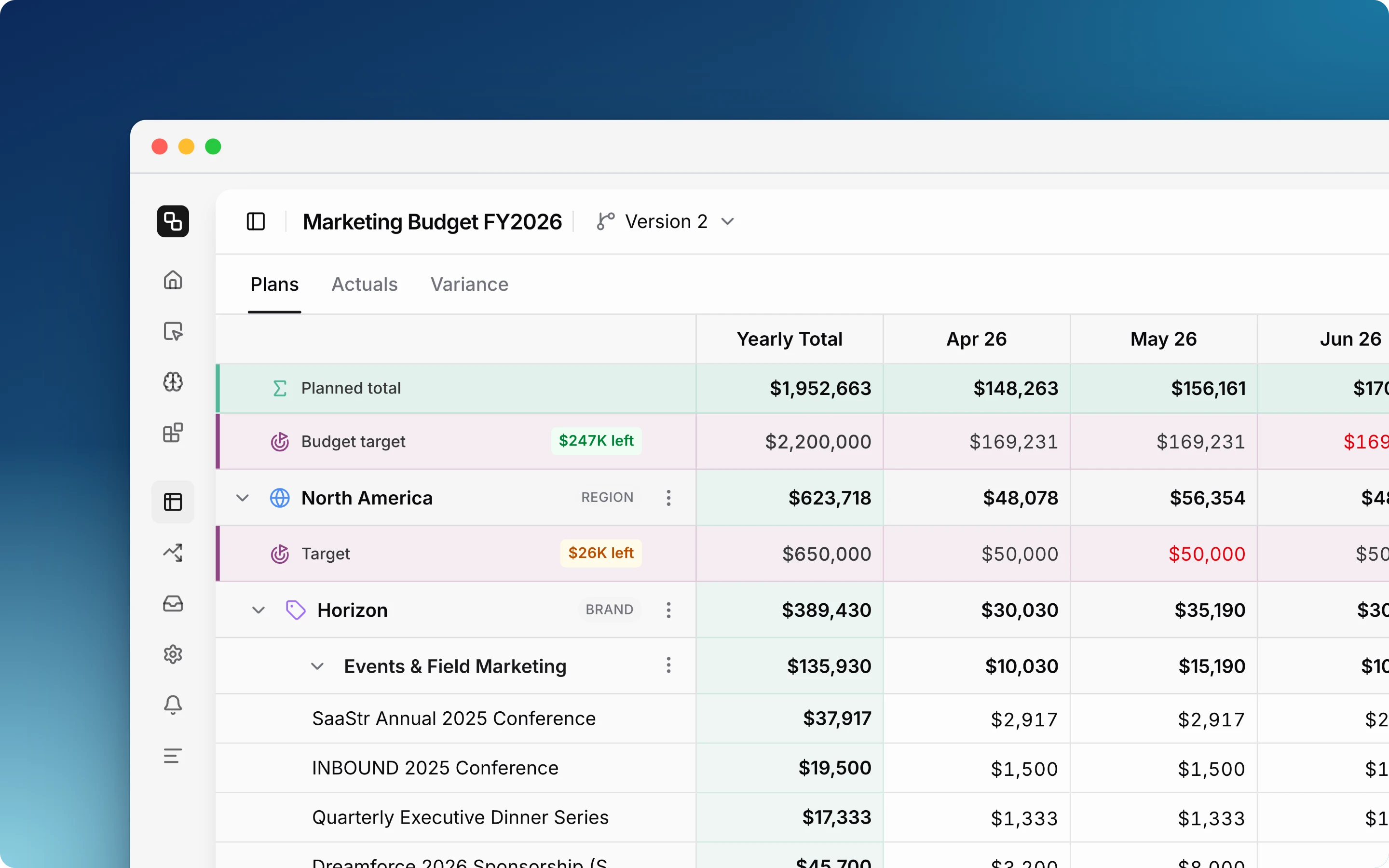
A target is the amount that a part of your budget can use. Set a budget target for the whole budget, and a target for each region, brand or master category at the top of it. The Budget Editor then shows how much of each target is left.
Which parts of a budget have targets
- Budget target: one target for the whole budget. Its row is under the totals row of the grid.
- Target: one target for each item of the top level of the budget. In a budget with custom levels, this is each item of custom level 1, for example each region. In a budget without custom levels, this is each master category.
Items of custom level 2, categories and line items do not have targets.
Targets belong to the version. Each version has its own targets. When you create a version from another version, or duplicate a budget, Etropo copies the targets.
Set the budget target
Only administrators can set targets. Target rows show on the Plans and Actuals tabs of the Budget Editor.
- In the Budget target row, click the cell in the Yearly Total column.
- Type the amount for the budget period and press Enter. Etropo divides it equally across the months.
If the months already have targets, Etropo asks Automatically update months? Click Apply to divide the new amount equally across the months. Click Dismiss to keep the target as it was.
Set a target for a region, brand or master category
The steps below use a budget split by Region. They are the same for a brand, a division or a master category.
- Click the ⋮ menu of the region, then Set target. An empty Target row opens under the region.
- Type the amount for the budget period and press Enter.
Set target shows only for an item without a target. To change a target, type in its Target row.
Change the target of a month or quarter
Each target has an amount for each month. The yearly total is the sum of the months.
- Month: type in a month cell. Only that month changes.
- Quarter: in the Quarter period view, type in a quarter cell. Etropo changes the three months in proportion to their current targets.
- Several months: copy a row of amounts from a spreadsheet and paste it into a month cell. The amounts go into that month and the months after it.
- Remove: clear a month cell to remove the target of that month. Clear the yearly total to remove the target.
Read the targets
Etropo compares each target with the planned amounts on the Plans tab, and with the actuals on the Actuals tab.
- Month cell: the amount is red when the month is over its target.
- Label next to the row name: the amount left for the budget period, or the amount over it. Green means more than 10% is left, amber means 10% or less, and red means over.
- Tooltip: hover over a cell to see the target, the amount used and the amount left.
Turn the target rows on or off with Targets in the Display menu. When the rows are off, the header row of each region and the totals row show a label instead, for example $120K left of target.
Over-allocation
The targets of the top-level items can add up to more than the budget target. For example, this can happen when a new version starts with a lower Budget amount. Etropo then shows Over-allocated by and the amount next to the version name. Hover over it to see the totals.
To keep the targets inside the budget target, Etropo does not save these changes:
- A target change that puts the top-level targets further over the budget target.
- A budget target below the sum of the top-level targets.
- A month change that makes the budget target larger than its yearly total. Change the yearly total first.
Changes that reduce an over-allocation are always saved.
Who can see targets
- Administrators see and change all targets.
- Members see the targets of the items they can access, but cannot change them. Members do not see the budget target. Learn more in Budget Access Control.
Ask Budget Buddy about targets
Budget Buddy reads the targets of the version. Ask, for example, “How much of the EMEA target is left?” or “Which region is closest to its target?” Budget Buddy cannot set or change targets.
For additional help you can reach out to our support team at: help@etropo.com