Master Categories
Master categories let you group related categories under a parent, giving your budget a two-level structure. Instead of a long flat list of twenty categories, you get a handful of collapsible groups — by region, channel, or team — each rolling up the totals of everything inside it.
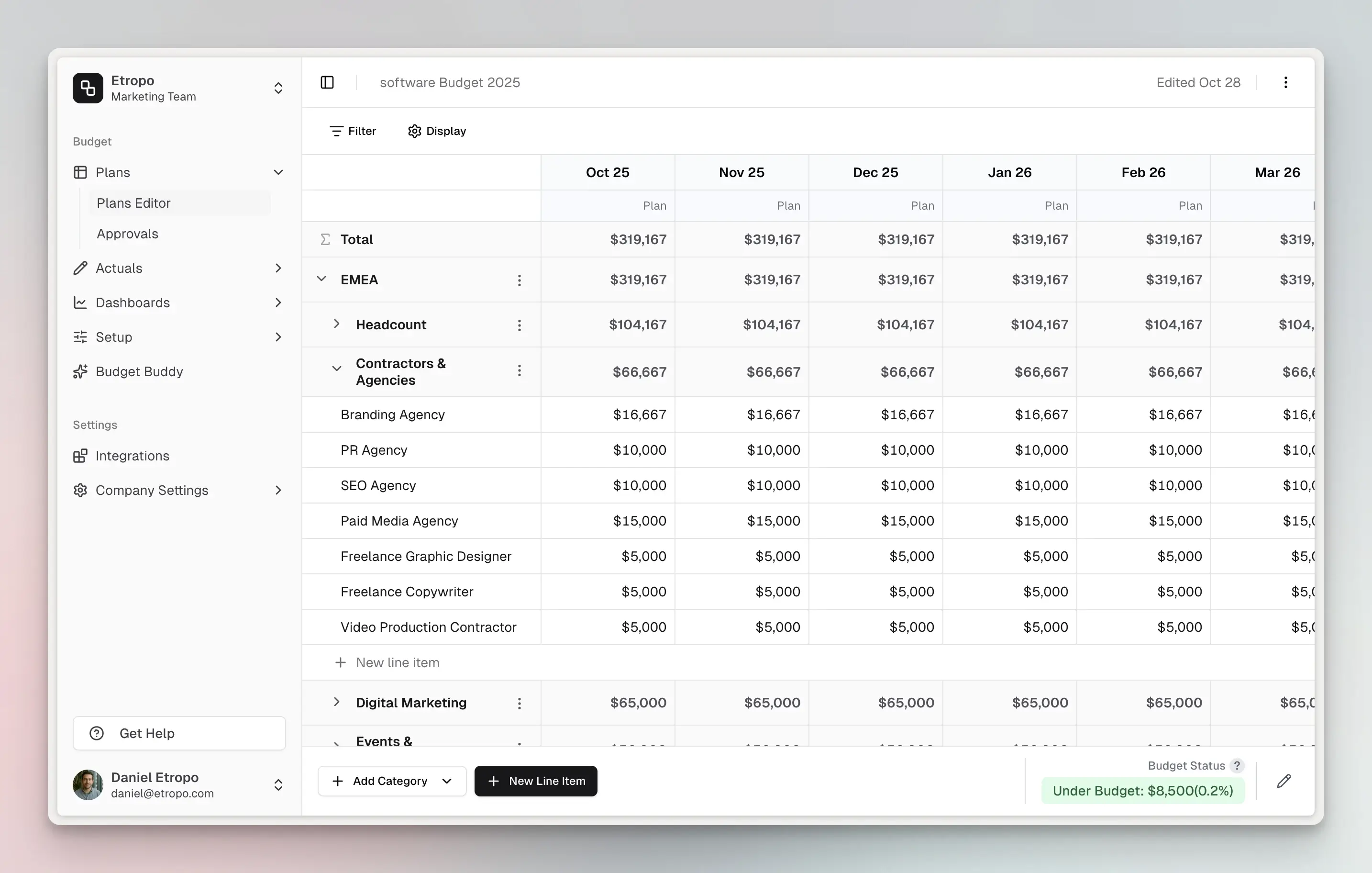
There’s nothing to turn on
Master categories are available in every budget, on every plan. There’s no setting to enable — your budget’s structure simply follows the categories you create:
- A budget with no master categories shows a flat list of categories, exactly as it always has. No groups, no indentation, no collapse arrows.
- The moment you create your first master category, the grid switches to the grouped view. Categories that don’t belong to a master sit together under Other.
- Delete your last master category and the budget goes back to a flat list. Your line items and data are untouched either way.
So you can start flat and add hierarchy later, whenever your budget outgrows a single list.
Create a master category
- Open your budget in the editor
- Click the arrow next to New Line Item at the bottom of the grid
- Select Add Master Category
- Give it a name and save
Only organization administrators can create or reorganize categories.
Add categories under a master
There are two ways to put a category inside a master:
Create it there directly — open the ⋯ menu on the master category row and choose Add Category. The new category is created inside that master.
Move an existing one — open the ⋯ menu on any standalone category and choose Move Category, then pick the master it should live under. Line items, amounts, and comments move with it.
When your budget has at least one master category, the New Category dialog also gains a Master Category dropdown, so you can choose a parent — or None (standalone category) — as you create it.
How the hierarchy behaves
- Master categories show aggregated totals from all their children
- Click the arrow on a master row to expand or collapse its categories
- Nesting is one level deep: a master holds categories, and categories hold line items. Categories inside a master can’t have their own children.
- Granting someone access to a master automatically grants access to every category underneath it — see Access Control
- Exports include a Master Category column whenever your budget uses them — see Exporting Budgets
- Dashboard charts and variance analysis roll child amounts up to their master, with drill-down into the detail
When to use them
Master categories earn their keep when:
- Your budget has 10+ categories that naturally group together
- You want simpler access control — grant by region, channel, or team rather than category by category
- You need totals for each major marketing area at a glance
For a budget with six categories, a flat list is easier to work with. Add the hierarchy when the list starts getting hard to scan.
Learn More
For details on building out your budget structure, see the Categories section in the Budget Editor documentation.
For additional help you can reach out to our support team at: help@etropo.com